Product variants and the Visual PBS
Video transcript
00:04 — One tree for the whole family
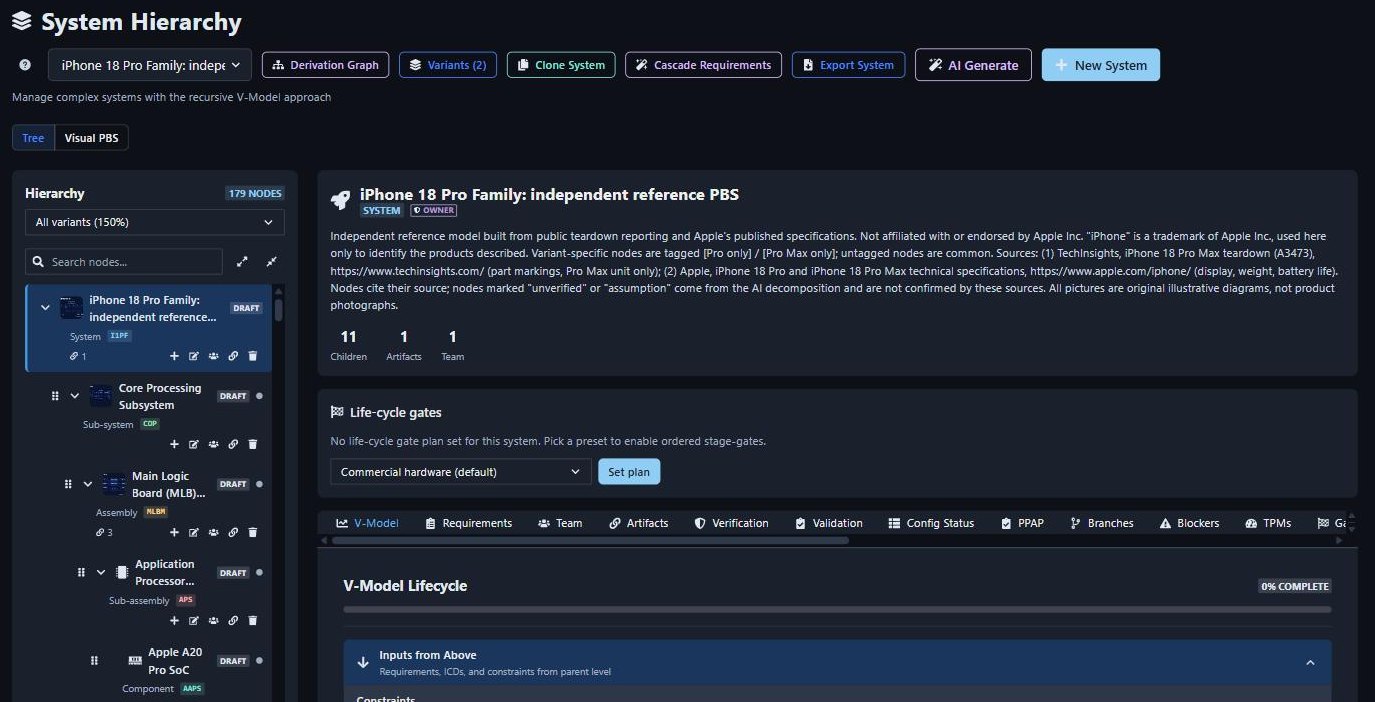
A product family is one product breakdown structure. Here, the iPhone 18 Pro and the Pro Max share a single tree: common parts appear once, and a part that exists in only one model is tagged with that model. This is an independent reference model, built from public teardown reporting and Apple’s published specifications, and every source is cited. Pick a model from the variant selector, and the tree shows only that model. The Pro Max uses all but three of the family’s nodes.
00:39 — The Visual PBS
Switch to the Visual PBS, and the same tree becomes pictures: one card for each sub-system. Click a card to go down a level: power management, then the battery pack. Details opens the full picture, its source and the description, without leaving the view. The cell module is shared, but its capacity differs between the two models, so each model’s detail is recorded on the one node. Select the Pro Max, and only its cell remains.
01:14 — Bill of materials and compare
On the system’s Variants tab, each model gets its complete bill of materials, gathered from every parts list in the tree. Lines for one model are marked; the rest are common, and the list exports to CSV. Compare variants puts two models side by side: the parts, requirements and bill of materials lines only one of them has, and the shared parts whose details differ.
01:41 — Verification per model
The verification matrix follows the same selector. Across the whole family, the system holds 53 requirements. With the Pro Max selected, it lists only the Pro Max’s requirements, and counts only the evidence produced for it. A test run on one model never verifies a requirement that belongs only to the other.
What it does
Most hardware ships as a family: a base model and a larger one, or a standard and an export version. Creopus models the whole family as one product breakdown structure (PBS). Parts common to every model appear once. Parts that exist in only one model are tagged with the models they belong to. This is often called a 150% model, because the tree holds more than any single product contains.
You pick a model from the variant selector, and every view shows only that model:
- the tree;
- the picture view (Visual PBS);
- the requirements;
- the bill of materials (BOM);
- the verification matrix.
Nothing is copied or forked per model, so a change to a common part is made once and applies to every model that uses it.
See it on a real product family
The iPhone 18 Pro family is public on Discover as a worked example. It covers two variants, iPhone 18 Pro and iPhone 18 Pro Max, in 179 nodes, from the system down to individual chips.
Independent reference model. This example was built from public teardown reporting and Apple's published specifications. It is not affiliated with or endorsed by Apple Inc. "iPhone" is a trademark of Apple Inc., used only to identify the products described. The pictures are original illustrative diagrams, not product photographs. Where a part number or a value is not public, the model says "Not publicly disclosed" rather than guessing.
Sources:
- TechInsights, iPhone 18 Pro Max teardown (A3473): part markings, from the Pro Max unit only.
- Apple, iPhone 18 Pro and iPhone 18 Pro Max technical specifications: display, weight, battery life.
Each node names its source. Nodes marked "unverified" or "assumption" came from the AI breakdown and are not confirmed by these sources.
You can open it without an account. To experiment with it, sign in and use Clone System to get your own editable copy. The clone includes the variants, the pictures and the linked documents.
The variant selector
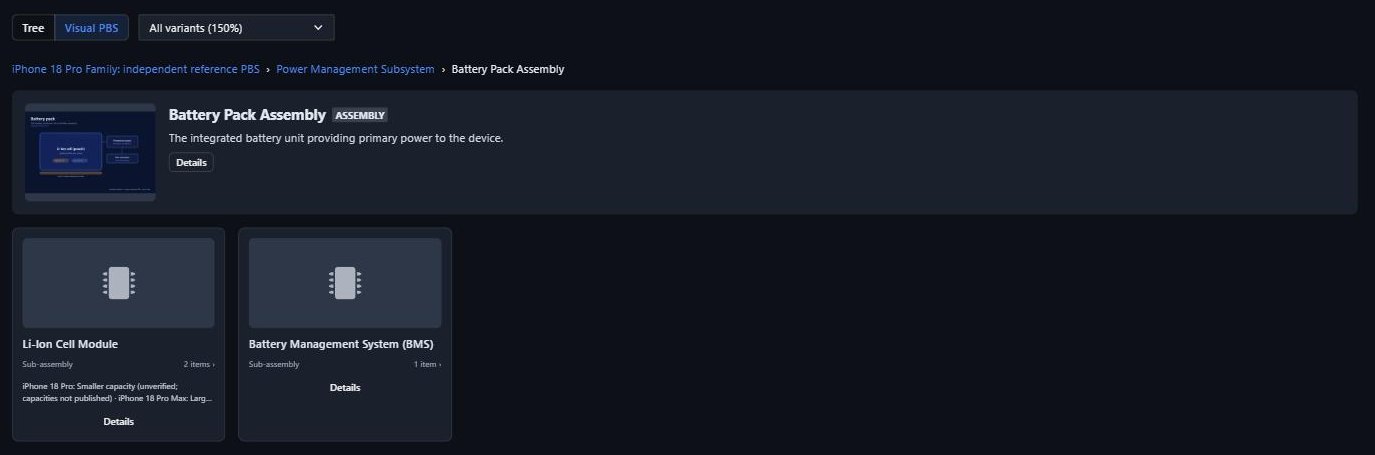
All variants (150%): the Li-Ion Cell Module holds both models' cells, and its card shows how each model differs.
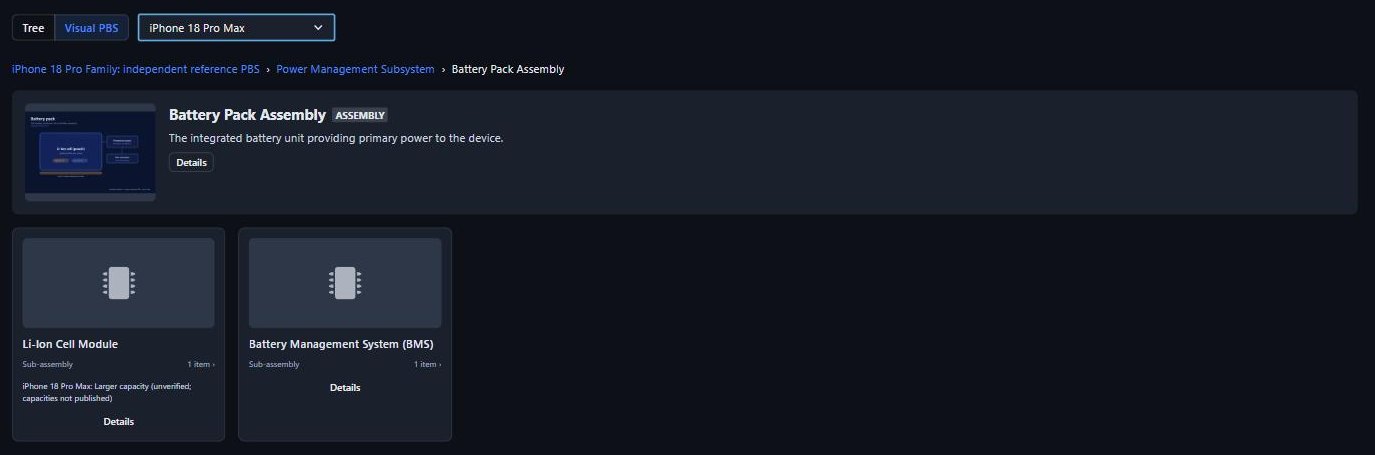
iPhone 18 Pro Max: the Pro-only cell is gone from the view.
The selector sits at the top of the tree and of the Visual PBS. The choice is kept in the page address (&variant=pro-max), so a link you share opens on the same model. The tree header shows how much of the family the model uses, for example 176 of 179 nodes.
How variants work
- Declare the models once, at the system. The system owner does this with the Variants button on the toolbar. Each variant has a short key and a label (e.g.
pro-max, iPhone 18 Pro Max). - A node is common unless you say otherwise. Under Applies to in a node's edit dialog, you can narrow it to some models. A node left empty inherits its parent's models. A node can only narrow its parent's set, never widen it: a part cannot belong to a model whose assembly does not.
- One part that varies in value keeps one node. The chassis is common, but its size differs between models. Instead of splitting it into two nodes, record the difference under Per-variant details, e.g. "iPhone 18 Pro: smaller frame for the 6.3-inch model".
- Removing a model is safe. If any node applies only to the model you are removing, Creopus refuses and lists those nodes. It never quietly turns them into common parts.
- Variants filter what you see; they do not grant access. Who can open or edit a node is still decided by the team roles on the hierarchy.
The Visual PBS
Switch from Tree to Visual PBS to see the breakdown as cards with pictures instead of a list.
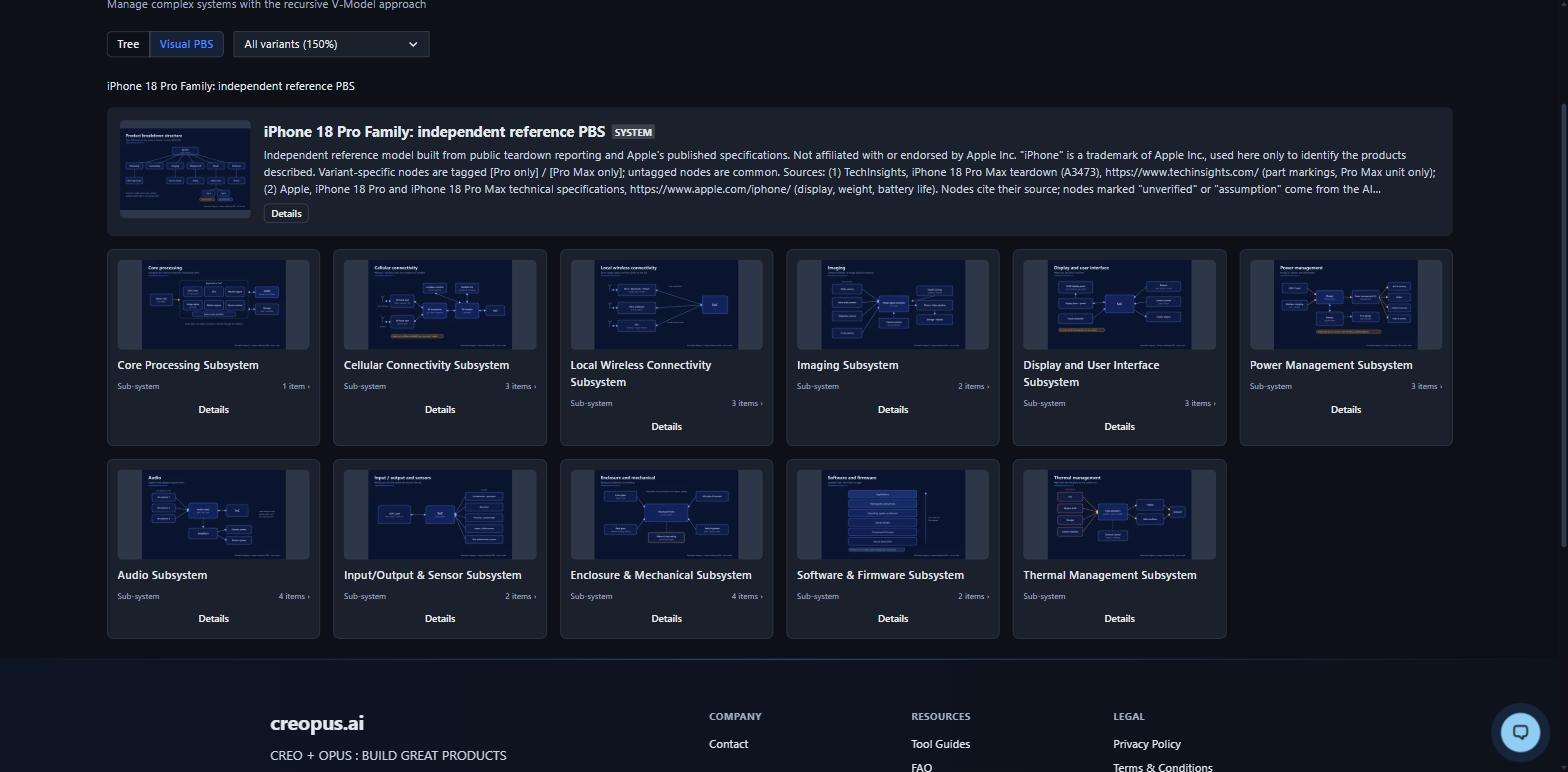
- Click a card to go down one level. The breadcrumb shows where you are, and the browser's Back button goes up one level.
- Details opens a side panel over the picture view. It shows the full-size picture, its source, the node's description and how many items sit below it. From there you can go down into the node, or open it in the Tree view.
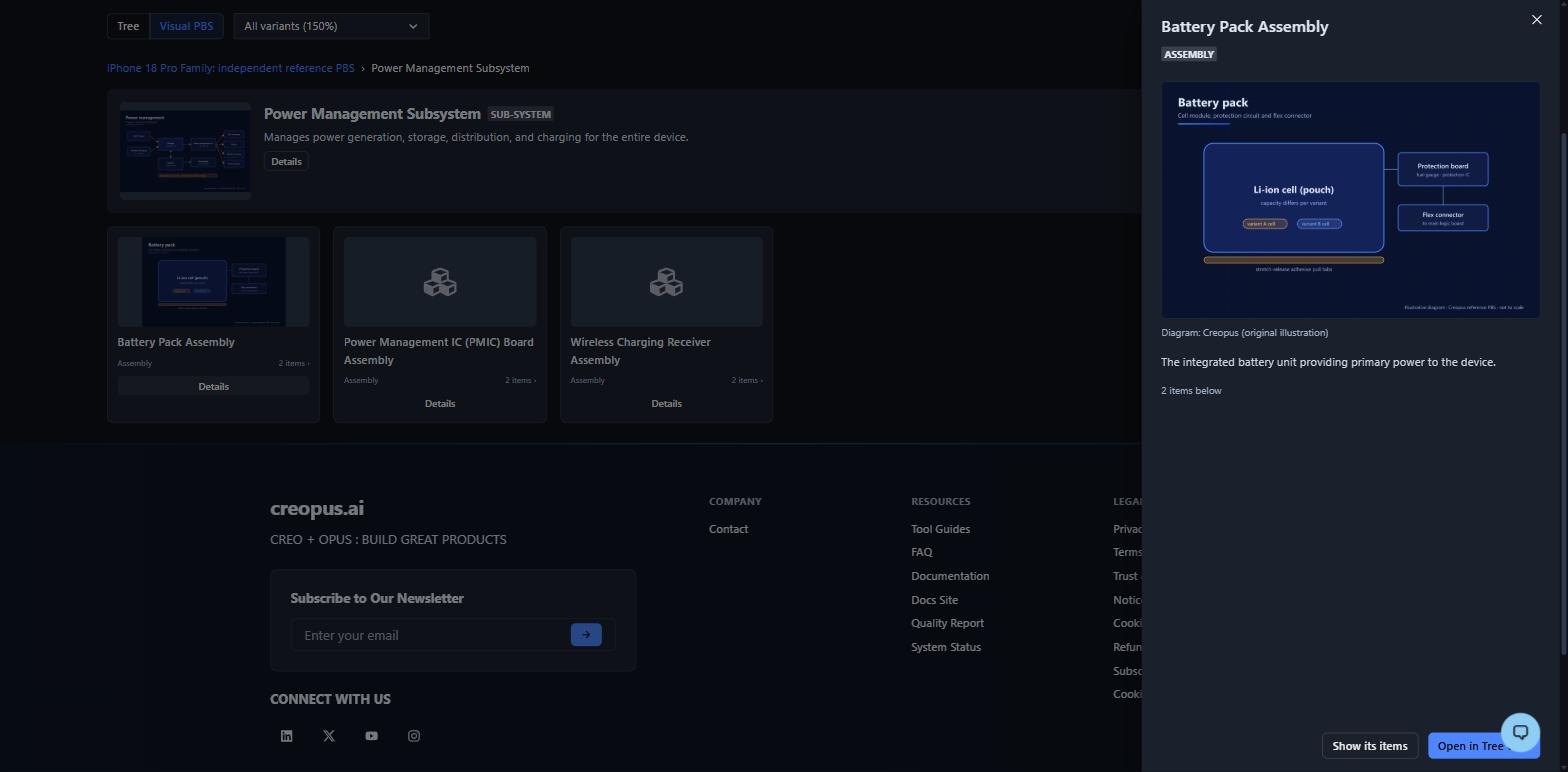
Adding a picture to a node:
- In the node's Attachments tab, attach an image to the node.
- Under Cover image, choose that image and optionally record where it came from (for example Own photo, 2026).
Creopus makes a small thumbnail for the cards and keeps the original for the Details panel. Raster images (PNG, JPEG, WebP, GIF, AVIF, TIFF) can be covers; SVG cannot.
A public system's cover images are visible to anyone on Discover. Use only images you own or have permission to publish.
Variant-aware documents
Items inside a document can be scoped to models, just like nodes: requirements, stakeholder needs, BOM lines, DFMEA failure modes and DVP tests. An item's scope can only be as wide as its node's. An item with no scope set applies to every model its node applies to.
In the iPhone family, the system requirements carry most of the variant-specific items. For example, "The iPhone 18 Pro shall render content at a resolution of 2622x1206 pixels" applies only to the Pro. When AI generation runs on a node of a system with variants, the models are part of its brief, so it can scope items as it writes them.
Bill of materials by variant
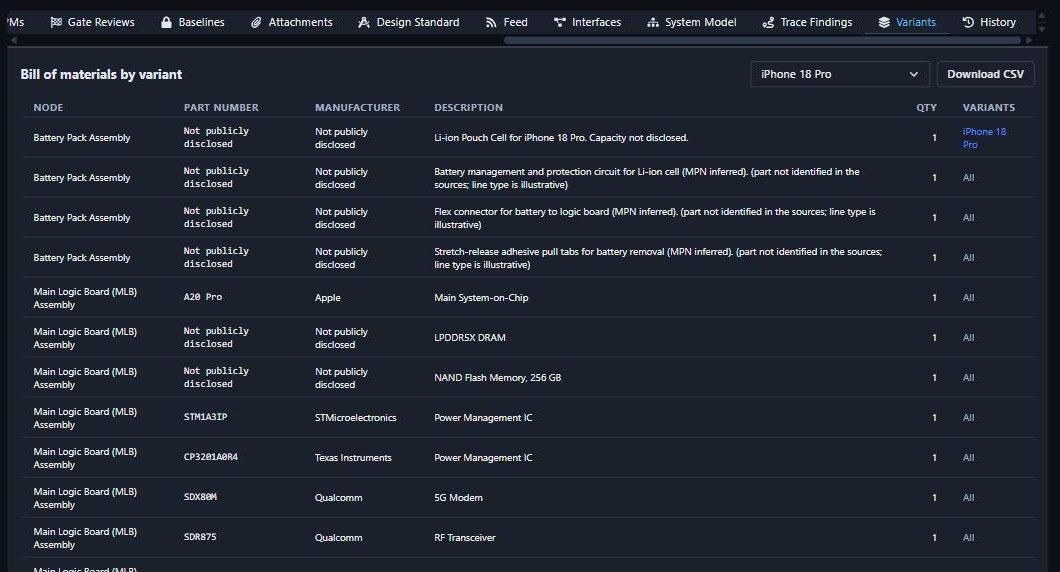
Open the system's Variants tab and pick a model. You get that model's complete BOM, gathered from every BOM in the tree and filtered to the lines that apply. Download CSV exports it.
Compare two models
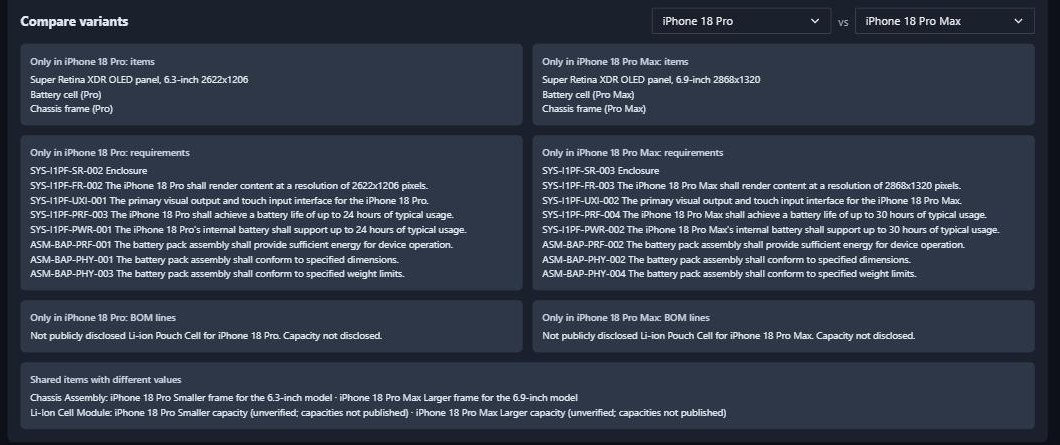
Below the BOM, Compare variants puts two models side by side. It shows:
- the nodes, requirements and BOM lines only one of them has;
- the shared items whose per-variant details differ.
This is where a review of "what changes between the two products" starts.
Verification per model
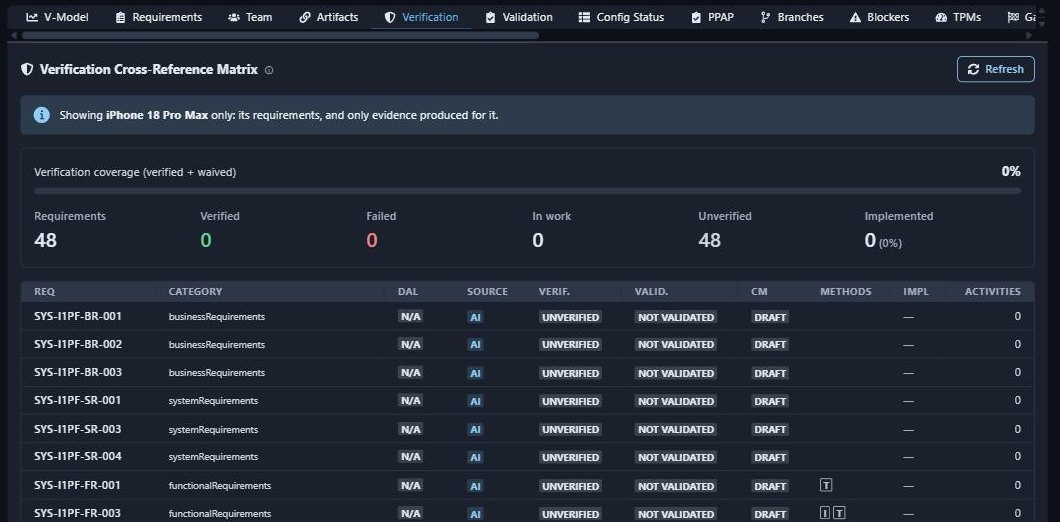
With a model selected, the Verification and Validation matrices show only that model's requirements. They also count only the evidence that was produced for that model. A test run on the Pro Max never verifies a Pro-only requirement. A test scoped to both models counts for both.
Every per-model answer is worked out when you open the view, not stored. Rescoping an item or a node is therefore reflected immediately, with nothing to re-run.
Why it matters
In a spreadsheet or a document set, variants usually become copies: one BOM per model, one requirements document per model. The copies drift apart, and nobody can say with confidence which requirement applies to which product. They also overstate verification: a test report on one model gets cited for a requirement it never covered.
One tree with scoped items avoids all of this. The common design is written once. The differences are explicit and can be reviewed side by side. The verification matrix for a model only counts evidence produced for that model.
Use cases
- Product families: base and Pro models, regional or export versions, or a sensor with two range options.
- Change reviews: Compare variants is the list of what a design review must cover for each model.
- Per-model sign-off: the verification and validation coverage of each model, from the same tree.
- Per-model BOM exports for costing or procurement, one CSV per model.