Program Planner and Evidence
Video transcript
00:07 — Import the plan
In most hardware programs, the plan lives in a spreadsheet, kept apart from the engineering it is meant to track. In Creopus, the plan belongs to the product itself. You can begin with the workbook your team already maintains. Before anything is saved, the planner shows you what it found: the tasks, the stage gates, their dependencies and their owners. It also points out anything that deserves a second look, such as a sign-off row with no duration. Owners are matched to people on your team, and each task is placed on the part of the product it concerns.
00:52 — A schedule worked out, not typed
Every date in the plan is derived rather than typed. The forecast follows from the dependencies between tasks, from your working week and from your holidays. On the timeline, each task sits against its baseline, so drift is visible at a glance. When a holiday is added to the calendar, the work that follows it moves accordingly, and the forecast states how far the finish has moved.
01:21 — Progress from the engineering
Progress, here, does not rely on someone remembering to update a cell. The planner proposes the engineering evidence behind each task, such as a test case in the design verification plan, or a reviewed DFMEA, and you confirm the link. Then, once the sensor’s accuracy test has been run, its result is recorded where the test lives, in the design verification plan: done, and passed. Back in the plan, the calibration task has closed itself, and the result stays attached to it as its proof. Each stage gate rolls up the rows that feed it, so you can see what still stands between the team and DVT.
02:08 — The week, the people and the money
For the week-to-week work, the board shows what is under way and what starts next, and the loading view shows who is over-committed, and in which weeks. Once the team’s rates are set, cost rolls up from the tasks. Earned value compares the work that was planned, the work that has been done and the money that has been spent, and the S-curve traces the value the plan expected against the value the work has earned.
02:42 — Slips, and the assistant
Once a baseline is set, every slip is measured against it, and the team hears about it the following morning: what moved, and by how much. And when you simply want an answer, you can ask the assistant directly, in plain language. It reads the same plan, and answers with the rows that moved and by how much, without anyone building a report.
What it does
The program planner runs a system's schedule inside Creopus. You import the plan workbook you already keep, track planned against actual dates, see what is slipping and why, and export back to Excel for the weekly meeting. Everyone sees the rows they own in My plan items, and every node shows its part of the plan.
What no spreadsheet can do: a row can name the engineering evidence that proves it is finished. An approved DFMEA, a passed test, a passed gate review. When the evidence holds, the row is done on the evidence's own date, and every row after it moves.
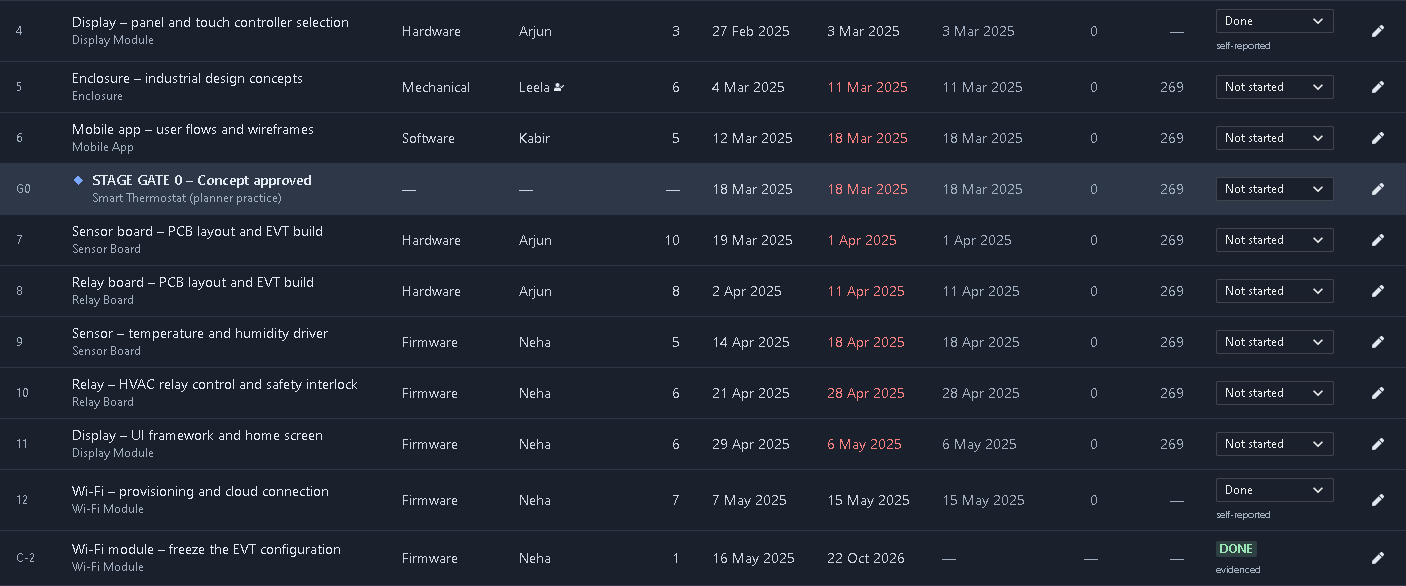
Every done row says how it is known to be done. "Evidenced" rows were closed by their evidence; "self-reported" rows rest on someone's word, and the Done figure keeps the two apart.
Why it matters
In a spreadsheet, "Done" is whatever someone typed. In a gate review, the board asks for the approved document, the test report, the signed checklist, and somebody goes hunting. The planner asks the same question every day, against the documents themselves, so the plan you report from and the evidence a board would accept are the same thing.
What can close a row
| Evidence | Done when | The date the row finishes |
|---|---|---|
| A document (any tool with reviews: requirements, DFMEA, block diagram, ICD, ConOps, SEMP, BOM and more) | approved in review, which baselines it; or baselined with or without a review, labelled as such | the approval |
| A DVP test | passed (or waived); or a result recorded, pass or fail, when the task is running the test | the test's sign-off date |
| Findings | an Implementation Workspace has no open critical or major finding; a DFMEA has no failure mode at Action Priority High; an RCCA has every corrective action closed | the last disposition, or the day the plan first sees it |
| A lifecycle gate | its gate review passed, with or without actions | the gate's decision |
| A configuration baseline | the node's configuration is frozen | the freeze |
| Requirement verification | coverage meets the same rule a gate uses: at least 80% verified, nothing failed, nothing in work | the day the plan first sees it |
| A checklist | every item done | the day the plan first sees it |
| A CAPA | closed, with its effectiveness check e-signed | the e-signature |
Done belongs to the row, not to the tool. The same DFMEA can close "DFMEA for EVT" when it is approved, and a later row, "DFMEA actions closed before DVT", when no failure mode is left at Action Priority High.
The rules
- A draft is progress, never done. A row whose DFMEA is still a draft or in review shows In progress, with the state in words: "In review since 3 Oct".
- The evidence's date is the actual finish. The row finishes on the approval, the gate decision or the sign-off date, not on the day someone noticed. Rows waiting on it move from that date. The day is counted in the plan's time zone (set under Calendar), so an approval just after midnight in Bengaluru lands on that day, not the one before.
- Done stays done. If the evidence changes later (a new revision, a requirement it depended on changes, a test re-run fails), the row keeps its finish date and carries a warning. Whether that needs new work is a decision for the program manager, usually a new row. A plan that rewrote its own history would make every past report wrong.
- Evidence counts from the row's start. A later row cannot be closed by an earlier version of the same document. Evidence dated before the row starts does not count, and while the work a row waits for is unfinished (or, when it waits only for that work to start, not started), the row has not started at all. The editor says so, and Count it accepts the evidence when the work really was done early.
- Rows without evidence are self-reported. Their status stays manual and is labelled so. The owner can back it with a note, links or files already attached to the node, and another editor, never the person who marked it done, can confirm it.
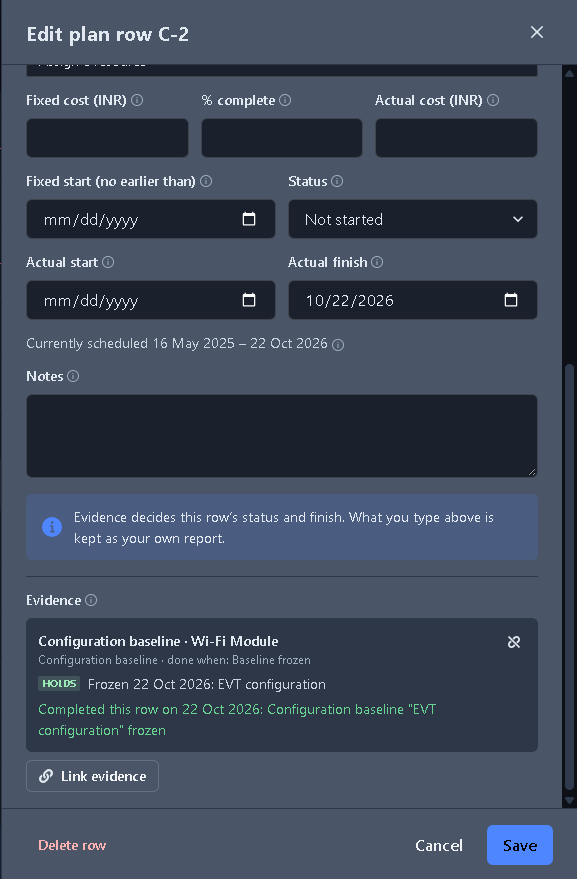
What closed the row, and when. The actual finish is the evidence's own date, and anything typed in the fields above is kept as the owner's own report, beside the evidence.
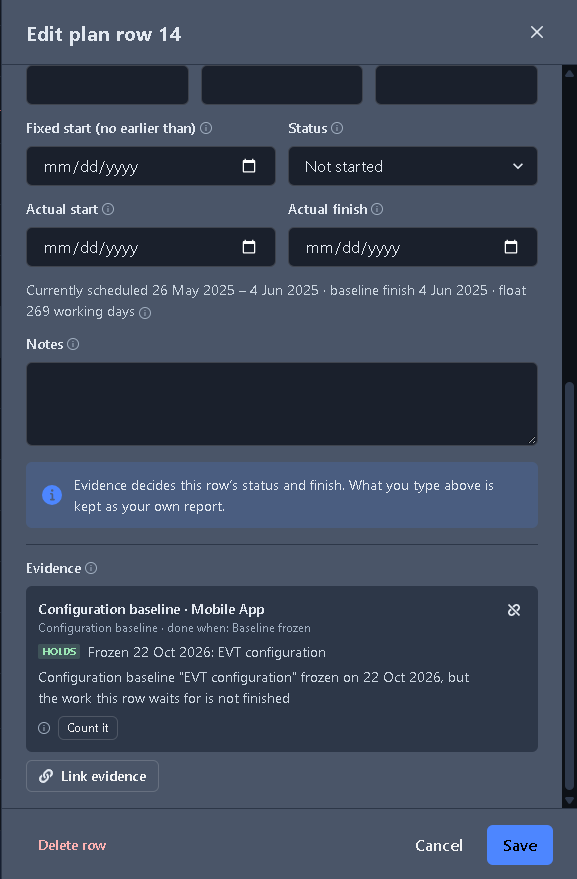
The evidence holds, but the EVT prototypes the row waits for are not finished, so the plan does not close the row on its own. Count it if the work really was done early.
Linking evidence
- From a row: open its editor, choose Link evidence, pick the kind, then one of the items on that row's node or the nodes below it (each shows its state now), and the condition that counts as done.
- After an import: Suggested evidence matches rows that name none to likely evidence, from the words in their titles ("DFMEA", "test plan", "EVT exit") and what sits on their nodes. Each suggestion says why, and nothing is linked until you tick it. A row and a DVP test are matched only when they share two words, and when the row's title names its subject ("IMU – detection latency"), the test's title or the node it sits on must name it too. Words every test title has, such as "verification" or "measurement", do not count, and "Wi-Fi" is one word. The list is meant to be short enough to accept as a whole, so it errs towards suggesting less.
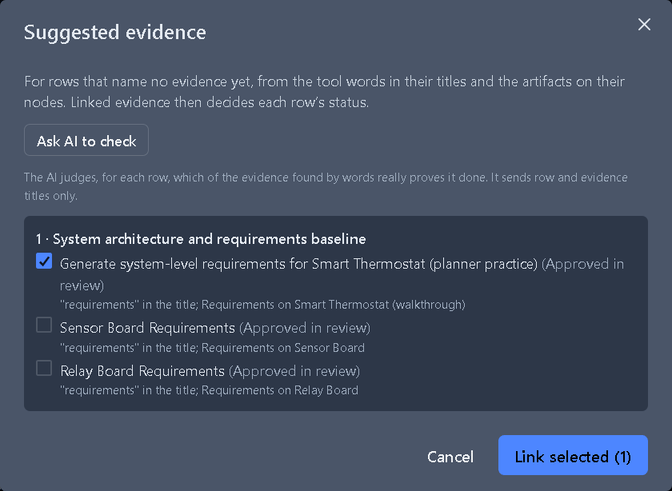
Evidence must come from the same system, and you can link only what you can see. Someone who works on one branch sees the state of evidence elsewhere in the system, never its name.
Fixing a wrong import
A re-import updates rows and adds new ones, but never deletes a row. If an import brought in the wrong rows, for example a tab that repeats another tab, an owner or editor of the whole system can choose Remove imported sheet on the plan page and pick the sheet the rows came from.
- It first shows what would happen: how many rows go, which are kept, and how many other rows waited on them.
- Rows that carry evidence, or a self-report someone confirmed, are kept and listed.
- Rows that waited on a removed row wait on its predecessors instead, so the chain stays connected.
- The removal is recorded on the plan.
The import preview warns before this happens: a tab that repeats another one starts unticked, and if you tick it along with the tab it repeats, the preview says each of its tasks would appear twice.
Self-reported rows
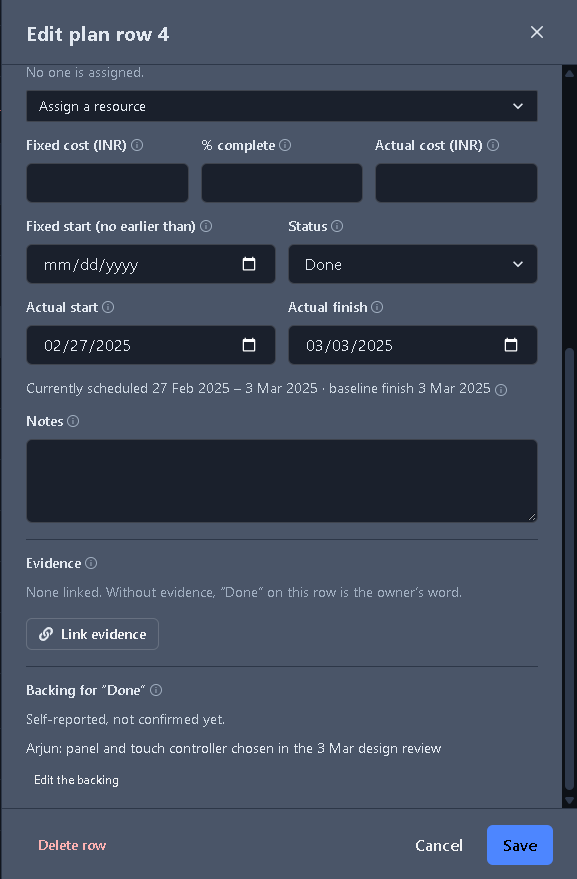
Not everything a program does leaves a document in Creopus: a supplier quote, a tooling kick-off, a lab booking. Those rows stay manual, labelled self-reported, and a second editor can vouch for them.
As more of the work happens in Creopus, more rows can name evidence, and the self-reported share of the Done figure falls.
Rows waiting for your confirmation are listed under To confirm in My plan items.
Gate reviews see the plan
A milestone linked to a gate adds an advisory criterion to that gate's readiness check: the rows feeding the milestone, how many are done, how many of those are proven by evidence, and how many are late. It informs the board; it never decides the gate.
My plan items
My Work → My Plan Items lists the plan rows you own, in every system you can open, grouped by system:
- To do: late rows first, then by when they are due.
- Late: rows past their forecast finish and not done.
- Done: newest first.
- To confirm: rows someone else marked done without evidence, on parts of a system you can edit. Each shows who marked it done and the note, links and files behind it, with Confirm it is done. A row you marked done yourself waits for someone else.
Each row reads as it does on its plan's page: its forecast dates, whether it is late, and how it is known to be done. Change a row's status right there. For anything else, the pencil opens the row in its plan.
A row shows here once its owner name is linked to you (see Linking owners to people). If you leave a system's team, its rows leave your list.
The number on My Work in the menu bar counts your late rows and the rows waiting for your confirmation, along with your reviews.
Slip emails
Every morning at about 07:00 in the plan's time zone (UTC when the plan has none), Creopus compares each plan with the day before and emails what slipped:
- a row whose forecast finish moved at least one working day later, with milestones listed first;
- a row that became late;
- the plan's finish moving later.
Rows that moved earlier are not reported, and on a day when nothing slipped, nobody gets an email.
- Owners and editors of the whole system get every slip in the plan, with a link to the plan.
- People linked as a row's owner get the slips in their own rows, on the parts of the system they can open, with a link to My plan items.
An email lists up to 15 rows and says how many more slipped. The first check of a plan only records where it stands, so nobody gets an email listing every row.
The emails are on by default. To stop them, open the Agent page, choose the bell, and untick Plan slips. If you have connected Slack there, they go to Slack as well.
The Plan tab on each node
Every node in the System Hierarchy has a Plan tab. It shows the plan rows on that node and the nodes below it, with a summary of how many are done and late.
- Dates come from the whole plan, so a row waiting on work in another branch shows its real dates.
- Filter by Open, Late or All, and change a status from the tab.
- Open the plan goes to the full plan. If you can edit the node, Add a row here opens a new row already placed on it.
- On a branch team, you see only your branch's rows.
Linking owners to people
An imported plan names its owners as text, such as "Ramesh", "HW team" or "QA + Kiran". A row reaches someone's My plan items only when its owner name is linked to that person in Creopus.
- Automatic matching. A name that matches exactly one member of the system is linked automatically. This happens when a plan is imported or updated from Excel, and when you type an owner on a row. "Ramesh" matches Ramesh Kumar. A name that could be two people, or a team, stays a name.
- One row at a time. In the row editor, Person lists the people who can open the row's node. Pick one and their name goes in Owner; change the name afterwards if the plan should say something else, such as "EE lead". Choose Match the name to go back to automatic matching, or Nobody to unlink the row.
- Link owners. This button on the plan page is for owners and editors of the whole system. It lists every owner name with its rows and who it links to now, and offers the member it matches. Link a name and every row with that name follows. The name shown in the plan stays as written.
- New team members. People appear in the list once they have accepted their invitation to the system. When names start matching people who joined after the import, the plan page says so.
- Rows a person cannot open. A row on a part of the system the person cannot open stays unlinked, and the dialog says how many rows that affects.
The board
Board, beside Table and Timeline, shows the plan as a column per status: Not started, In progress, Blocked and Done. Each card shows the row's node, owner and due date, and marks rows that are late, on the critical path, proven by evidence or self-reported. The discipline tabs filter the board as they filter the table.
- Drag a card to another column to change its status. The same rules apply as in the table: marking a past row done or started records its planned dates as the actual ones, and the message says so.
- From a keyboard, use the card's Move menu instead.
- A locked card cannot be moved, and its lock says why: its evidence decides its status, or you can only view it.
How a row waits for another
In the row editor, Waits for lists the rows a row depends on, and says how it waits for each:
| Link | The row | For example |
|---|---|---|
| Finish → start (the usual) | starts the working day after that row finishes | assembly, once the parts have arrived |
| Start → start | starts once that row has started | the test procedure, written while the design is under way |
| Finish → finish | finishes once that row has finished | the design notes, closed with the design |
| Start → finish | finishes once that row has started | the old supplier's run, until the new supplier starts |
A lag adds working days to the link: start → start with a lag of 2 starts two working days into that row. A negative lag, a lead, overlaps the rows: finish → start with −1 starts on that row's last day.
- The plan's start and finish. As in Microsoft Project and Primavera P6, no link puts a row before the plan begins. A row whose finish no other row waits for has no float beyond the plan's finish.
- Milestones mark the end of a working day. A milestone that waits for a row to start sits on the working day before that row's first day, which is the same moment.
- Evidence follows the link. A row that waits for another to start can be closed by its evidence once that row has started. A row that finishes with another waits for that row to finish.
- Health checks the links as DCMA does: no leads, lags on at most 5% of links, and at least 90% of links finish → start. Leads and lags often stand in for work nobody has named, and a row for that work is easier to track.
Resources and levelling
Resources, on the plan page, lists the people, teams and equipment the work needs. Each has a capacity in units: 1 is one person full time, 3 is a team of three, 0.5 is someone half time. A resource can be linked to a member of the system, and given a rate per working day for budgets (see Cost and earned value). Resources work the plan's calendar. Owners and editors of the whole system manage them.
In the row editor, Resources assigns a row to them, each with its units: 1 for full time, 0.5 for half. Anyone who can edit the row can assign it.
Loading (beside Table, Timeline and Board, once the plan has resources) shows what each resource is asked for, week by week, against what it has. A week is red when, on some day of it, a resource is asked for more than it has. Click a week to see the rows behind it. Rows in parts of the system you cannot see still count, without their names: a person's time on other work is still their time.
Level resources, on the Loading view, holds unstarted tasks back until no resource is asked for more than it has on any working day, as Microsoft Project levels a plan:
- Rows with the most float wait first, then the later ones, so the critical path keeps its dates where it can.
- Started and finished work stays where it is, and so do milestones and level-of-effort rows. A row moves whole; it is never split.
- You see what would move before anything changes: the rows and their new dates, the plan's finish before and after, and how many over-allocated days remain. Apply makes the change; each row's change is logged against you.
- Keep the plan's finish levels only within float. Some overload may then stay, and the rows that could not fit are named.
- A row that asks more of a resource than the resource has at all cannot be fitted, and is named.
- Clear levelling takes every levelling delay away, with the same preview first.
Levelling starts from no delays each time, as Project clears its levelling values first. Once a plan has resources, Health also checks that every unfinished task has one (DCMA's resource check).
Cost and earned value
Give the plan a currency under Calendar, each resource a rate per day under Resources, and a row a fixed cost in the row editor for what it costs whatever its people (a part, a test house). The row editor shows its cost fields once the plan has a currency or any cost. A row's budget is its resources' rates for its working days plus its fixed cost. Set baseline freezes each row's budget along with its baseline dates, so a later change of rate or duration moves the budget, never the baseline. Every kept baseline keeps its budgets too.
As the work goes on, record each row's % complete and actual cost in the row editor. A row not yet started moves to In progress once its % complete is above 0, as in Microsoft Project; marking it done is still a status change. The Cost and earned value panel then shows, as of today:
| Figure | What it is |
|---|---|
| BAC | the baseline budget of all the work |
| PV | the budget of the work the baseline planned to be done by today |
| EV | the budget of the work done. A done row earns all of its budget; another earns its % complete, and nothing until a percent is entered. A level-of-effort row earns as planned, as earned value management treats level of effort |
| AC | what has been spent |
| SPI, CPI | EV ÷ PV and EV ÷ AC. Below 1, the work is behind schedule, or costing more than its budget |
| EAC | the estimate at completion, as a range: AC + (BAC − EV) ÷ CPI is the best case, and dividing by CPI × SPI instead the worst, as the GAO Cost Estimating and Assessment Guide recommends |
| VAC | BAC − EAC: how far over or under budget the work is heading |
| TCPI | (BAC − EV) ÷ (BAC − AC): the cost efficiency the rest of the work needs to finish on budget |
An S-curve draws planned value along the baseline and earned value as rows are done. An index that cannot be worked out, such as CPI before anything is spent, shows a dash. These are the standard EIA-748 earned value indicators, worked out from the plan; the planner is not a certified earned value management system.
Once a plan has costs, Health also flags unfinished tasks with no budget, since work with no budget earns nothing.
The calendar
Calendar on the plan page sets the working days, the holidays, the time zone the plan's days are counted in, the currency its costs are in, and the disciplines. Every date in the plan moves when the calendar changes.
Add public holidays adds a country's official list for a year to the holidays shown. Remove any day your organisation works, then save.
| List | Years | From |
|---|---|---|
| India: national holidays | 2024 onwards | Republic Day, Independence Day and Mahatma Gandhi's Birthday |
| India: central government offices, Delhi | 2026 and 2027 | the Department of Personnel and Training's memorandum for the year. Id-ul-Fitr, Id-ul-Zuha, Muharram and Id-e-Milad can move with the moon |
| United States: federal holidays | 2024 onwards | 5 U.S.C. 6103. A Saturday holiday is observed on the Friday before, a Sunday one on the Monday after |
| United Kingdom: England and Wales, Scotland, or Northern Ireland | 2024 onwards | the bank holidays GOV.UK lists. One that falls on a weekend moves to the next weekday |
| Japan: national holidays | 2024 to 2027 | the Cabinet Office's list, with substitute holidays. Equinox days are set each February for the next year |
A bank holiday proclaimed for one year only, such as Scotland's World Cup bank holiday on 15 June 2026, is in a list once it has been announced. State, regional and company holidays differ from these lists: add them as dates.
Keeping Excel in the loop
Teams that report in Excel can keep doing so. Export .xlsx writes an All sheet and one sheet per discipline, with each row's status and actual dates. Its Predecessors column lists the rows each row waits for as Microsoft Project writes them: 3; 5SS+2 waits for row 3 to finish, and starts two working days after row 5 starts. Rows are named by WBS, or by their place in the plan when they have none. The Resources column names each row's resources, with the units of any that are not full time: Asha; Test rig (0.5). The last three columns are each row's Budget, % Complete and Actual Cost. When the team has updated that file, Update from Excel reads the progress back: status, actual start and end, working days, owner and notes. It does not read % complete or actual cost: record those in Creopus.
- It shows what would change before anything does, and each change is recorded against the person who uploaded it.
- Only cells someone changed in the file are applied. A value changed in Creopus after the file was exported stays as it is in Creopus; if the file changed the same cell differently, both values are shown and Creopus keeps its own. An old copy of the file can never undo newer work, and uploading the same file twice changes nothing.
- Titles, structure and links are changed in Creopus, never from the file; a renamed row is reported, not applied.
- Anyone on the system can upload, but only the rows they may edit change. A firmware lead's upload changes the firmware rows.
Microsoft Project
Export for MS Project writes the plan as Microsoft Project XML, which Project, ProjectLibre and Primavera open: every row as a task, milestones, working-day durations, links of all four types with their lags, actual dates, the baseline, the plan's resources with their capacity, rate and each row's assignments, each row's fixed cost, baseline cost, % complete and actual cost, and the plan's working week and holidays. Project works out its own earned value fields from these. Each row's owner goes in a text field called Owner. A plan with no resources sends its owners as resources instead, so they still show in Project.
Import workbook also takes a Project file saved as XML. Its tasks go through the same preview as a workbook. Summary tasks become the group of the rows under them, and assigned resources become owners, unless the file has an Owner field. Work resources (people and equipment) become the plan's resources, with their capacity (Max. Units), their standard rate as a rate per working day, and the units of each assignment; a resource the plan already has, by name, is reused. Tasks keep their fixed cost. Material and cost resources have no time to plan, so they are listed in the preview and left out. Links keep their type and lag. Two kinds of lag are listed in the preview: one Project counts in elapsed days becomes the working days in it (7 calendar days are 5), and one given as a share of the task's duration is left out, keeping the link. A row with no link keeps its date from the file. Progress recorded in the file is not imported: record it on the rows after the import.
Comparing with an earlier baseline
Every time someone sets a baseline, the plan keeps it (the last 20). Under the Baseline figure, Compare with measures the plan against an earlier one, for example the plan as agreed at kick-off, so you can see how far each row has moved since. A row added after that baseline has no baseline in the comparison. History starts with the first baseline set after this feature arrived.
AI help
- Ask AI to check, in Suggested evidence: word matching finds evidence that shares words with a row, which is not the same as evidence that proves it ("IMU detection latency" and "SD card detection latency" share two words and nothing else). The AI looks at the short list found for each row and keeps only what really proves the row is done, with its reason. Nothing is linked until you tick it and choose Link selected. Only row and evidence titles are sent.
- Draft a plan with AI, from an empty plan or the import dialog: the AI drafts rows of work on the system's own nodes, linked finish to start, with a milestone for each stage gate, from the system's node names, its gates and its disciplines, a start date and anything you tell it. The draft opens in the import preview, where you check every row, its node and its working days before importing. A draft sets no baseline: set one when the team has agreed the plan. Its rows form the sheet "AI draft", which Remove imported sheet takes out in one step.
Agents and MCP
The Creopus agent and MCP clients can do almost everything the plan page does. The agent asks you before each change.
On the plan page the agent sits at the right edge, for anyone who can change the plan: click the robot to open it. It works on that system's plan, and each system's plan keeps its own conversation. The row editor opens at the left, so neither of them covers the plan.
- Read:
- the plan's summary, or one node's part of it;
- rows found by name, with what an edit needs;
- your own rows across systems, so "what is on my plate this week?" has an answer, and the rows waiting for your confirmation;
- what slipped since the last slip email;
- the calendar, and the kept baselines, with the plan measured against any of them;
- the owner names and the imported sheets;
- the resources, each with its capacity, its rows and the days it is over-allocated;
- the plan's earned value: BAC, PV, EV, AC, SPI, CPI, the estimate at completion as a range, and TCPI.
- Rows: add, edit and delete rows.
- An edit covers status, dates, working days, owner, notes, title, node, discipline, the rows it waits for, with how it waits for each (link type and lag), the resources it is assigned, and its fixed cost, % complete and actual cost.
- Deleting a row can relink the rows that waited on it.
- Evidence:
- list what a row could name, see suggested evidence, and ask the AI to check it;
- link, change and unlink evidence;
- back a self-reported row with a note, links and files.
- The whole plan:
- set a baseline, change the calendar (a country's public holidays and the currency too), and link owner names to people;
- add, change and remove resources, and level them: the agent shows you what would move first, and applies it only on your word;
- remove an imported sheet, after showing what would go;
- draft a plan with AI, then apply the draft once you agree.
- Files:
- export the plan as Excel or Microsoft Project XML. You get a download link that works for 15 minutes, and only while you can still open the plan;
- import a workbook or a Project file, or update progress from an edited export, from a file attached to a node of the system. MCP clients can also use a file they uploaded. The agent shows you the preview first, and imports only the sheets you choose.
Choosing a node, discipline or kind for single rows during an import happens on the plan page. After an agent's import, change those rows one at a time.
Confirming a self-reported row stays on the plan page: it is a second person's sign-off.
A link decides when a row is done, so the agent links only evidence you asked for or accepted.
Try it first
The planner practice tutorial walks through all of this on a sample plan, before you use your own: importing a workbook and a Project file, tracking, baselines, the board, link types, owners, resources and levelling, cost and earned value, Excel round trips, evidence and the agent.