BOM Completion
From a schematic or prompt to a costed, sourceable BOM.
What it's for
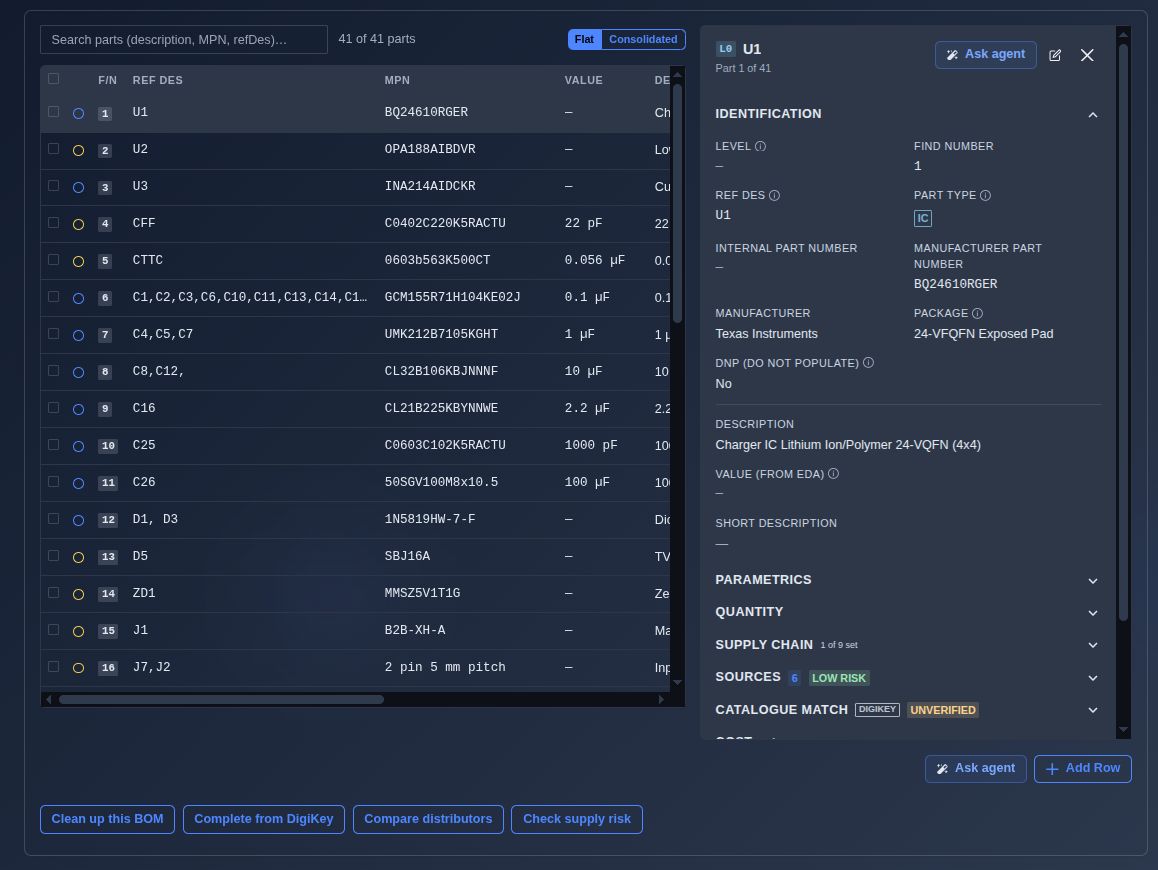
A master-detail BOM parts table (F/N, Ref Des, MPN, Value, Description; click a row to view every available part field). The BOM provides four sourcing and intelligence actions: Clean Up this BOM, Complete from DigiKey, Compare Distributors, and Check Supply Risk. These actions support BOM cleanup, DigiKey-based part completion, multi-distributor sourcing comparison, and supply-chain risk analysis.
When to use it
The bridge from design to manufacturing, turning an established architecture into a complete, sourced, and risk-aware BOM.
How it works
-
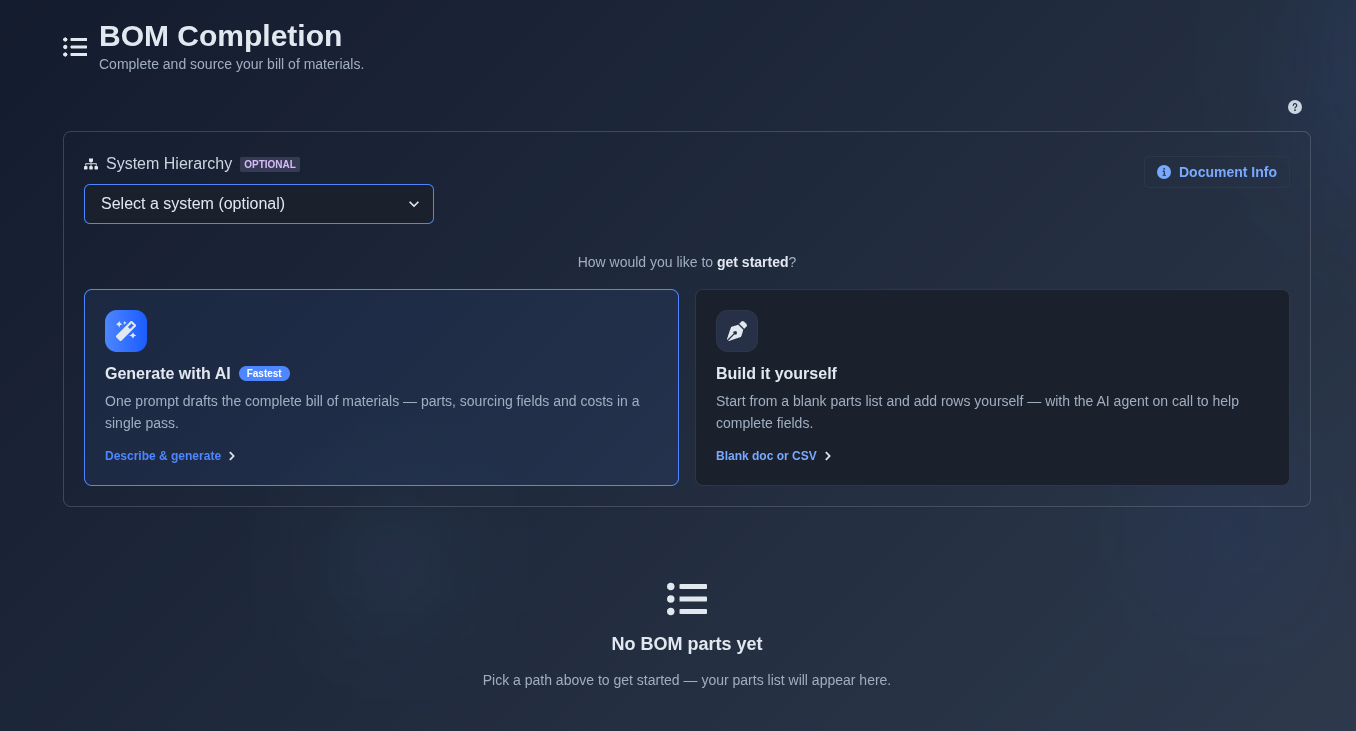
Derive from a Block Diagram, generate from a prompt, or import a CSV. → You can create the BOM by deriving it from a block diagram, generating it from a prompt, or importing it from a CSV file. Select the option that best matches your requirements and the data available to you. The selected input populates the BOM with designators (U1, R1, C1, etc.) and candidate parts, which are displayed in the Master view. You can then open any component to view its complete information in the Detail view, where each field and component-specific data can be reviewed.
▶ Initial State▼ Initial State
-
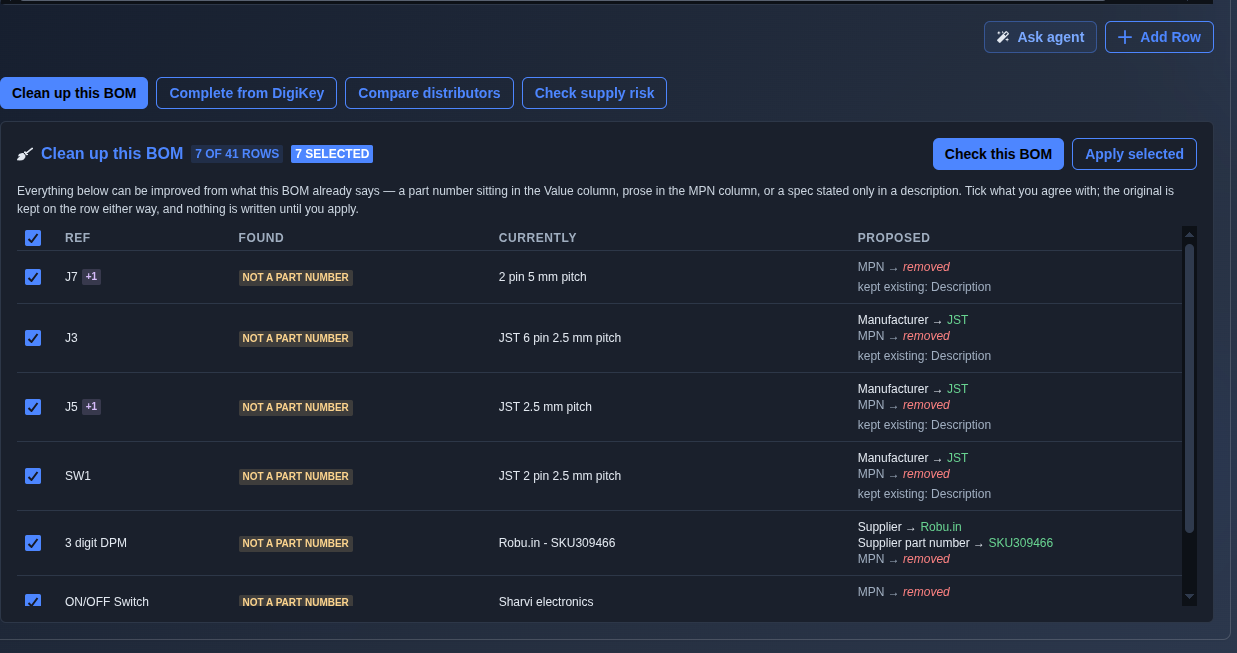
Open “Clean up this BOM” and click “Check this BOM.” → AI analyzes the BOM and identifies parts with incorrect, incomplete, or misplaced information, then generates proposed corrections such as MPN, Manufacturer, Supplier, Supplier Part Number, Value, Description, and other BOM field updates. Review the AI-generated proposals and select the changes you want to apply. You can select all components or a single component, then click Apply Selected to apply the proposed changes to the selected component(s). Once applied, the updated values are reflected in both the Master view and the component’s Detail view.
▶ Clean up This BOM▼ Clean up This BOM
-
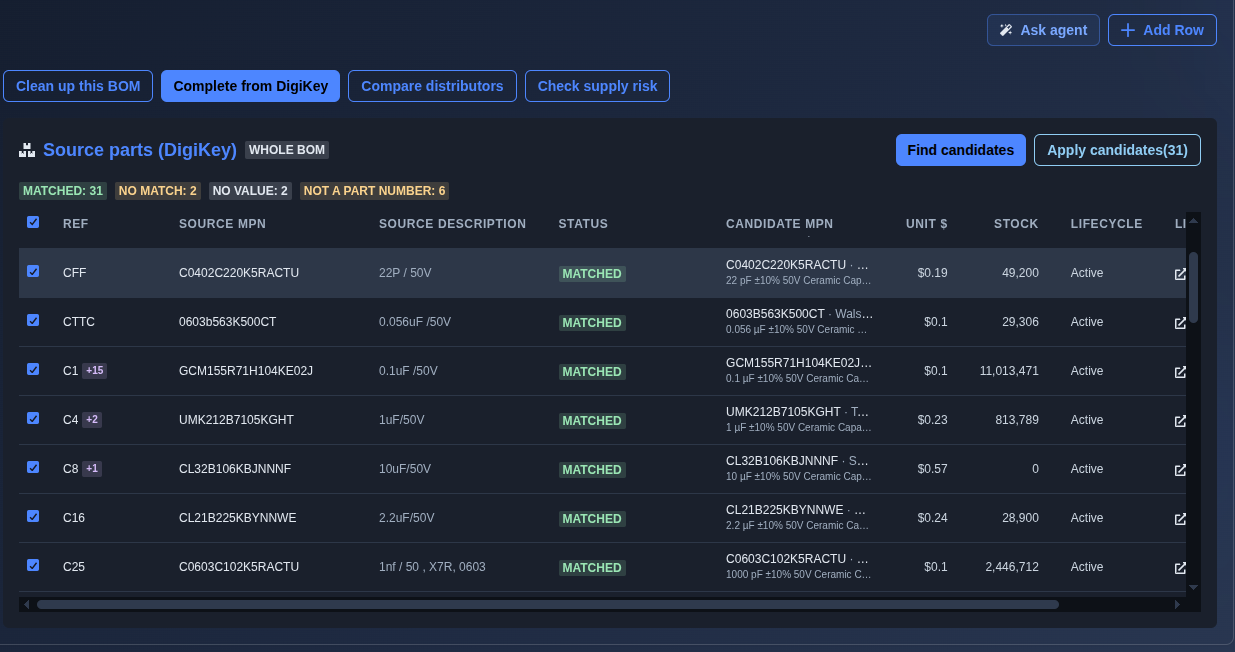
Open “complete from digikey” and click "Find Candidates" → Each part resolves to a live DigiKey status (Matched / No Match / No Value / Not a Part Number) and displays Source MPN, Source Description, Status, Candidate MPN, Unit $, Stock, Lifecycle, and Links. Then click Apply Candidates, where you can choose to apply the candidates to the whole BOM or a single component. The selected candidate information fills the empty fields, and when you open the detail view of each component, the Catalogue Match section is displayed as UNVERIFIED until the match is manually confirmed.
▶ Complete from DigiKey▼ Complete from DigiKey
-
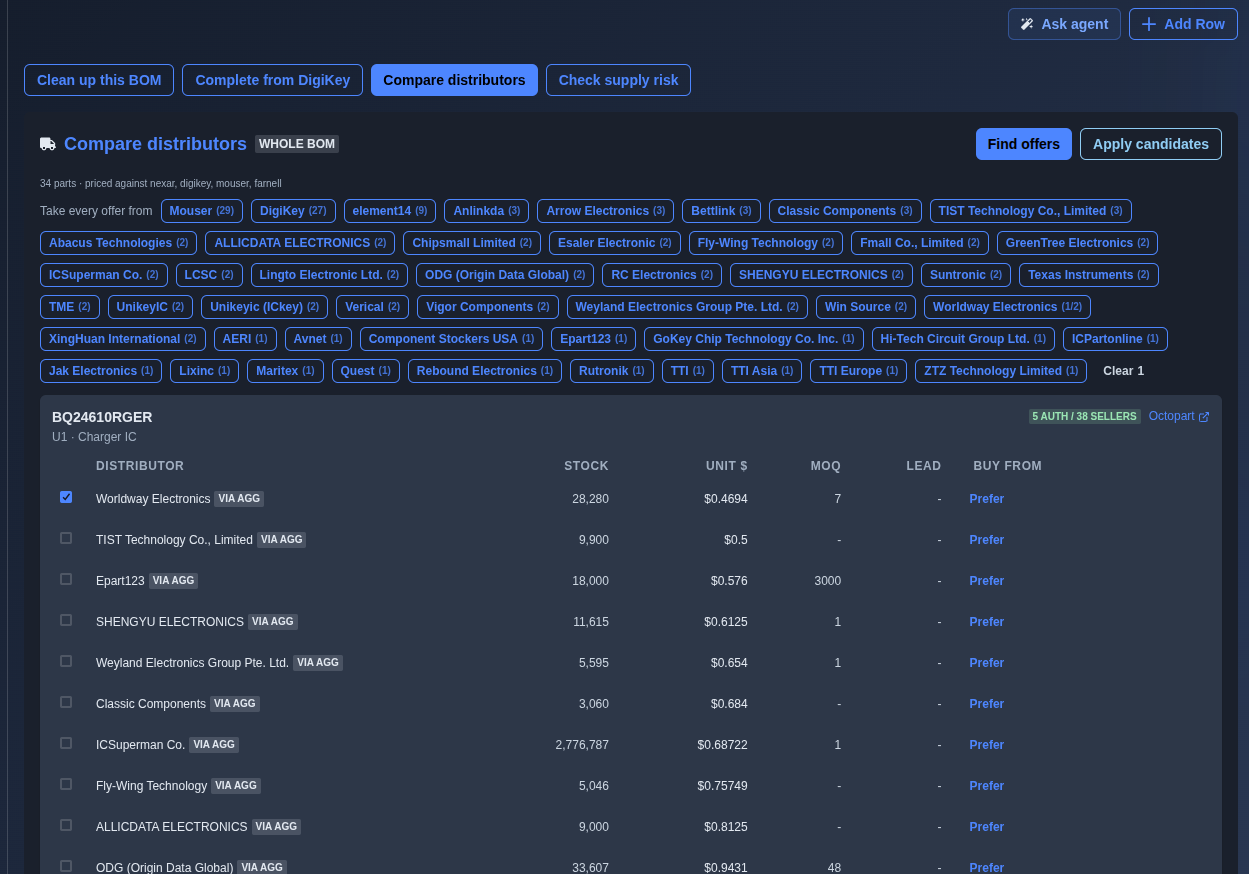
Open “Compare distributors” and click “Find offers.” → The BOM is checked across multiple distributors, showing available offers for each part, including distributor, stock, unit price, MOQ, lead time, authorized-seller counts, and purchasing options. You can compare supplier offers, review second-source alternatives, and select a preferred distributor. After selecting a distributor, click Apply Candidates to apply the selected offer, and the selected supplier’s details are updated in the component’s detail view under the Source fields.
▶ Compare Distributors▼ Compare Distributors
-
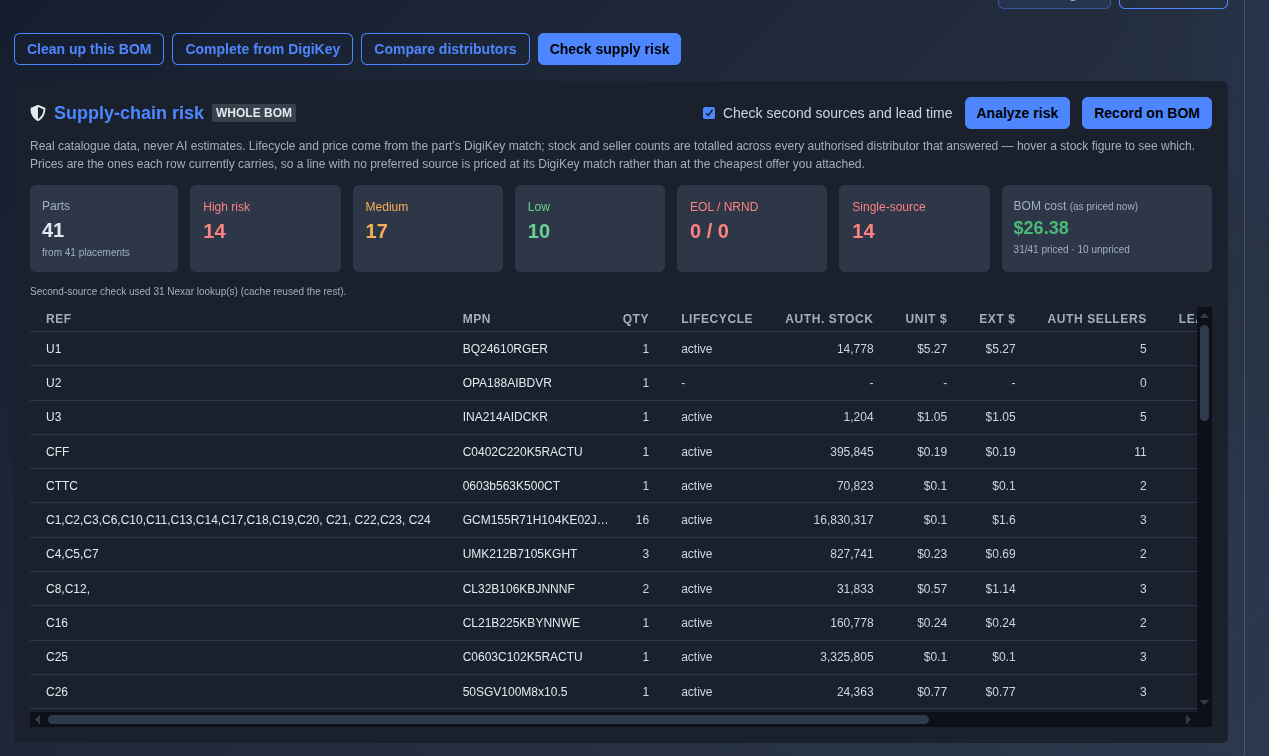
Open “Check supply risk” and click “Analyze risk.” → Summary cards show High, Medium, and Low risk, EOL/NRND, single-source counts, and the current BOM cost. The per-part table provides lifecycle, stock, unit and extended cost, authorized-seller counts, and lead-time information. Click Record on BOM to save the analyzed supply-risk information for the identified parts. Once recorded, the Supply Risk details are updated and displayed in each component’s detail view under the Source section.
▶ Check Supply Risk▼ Check Supply Risk
-
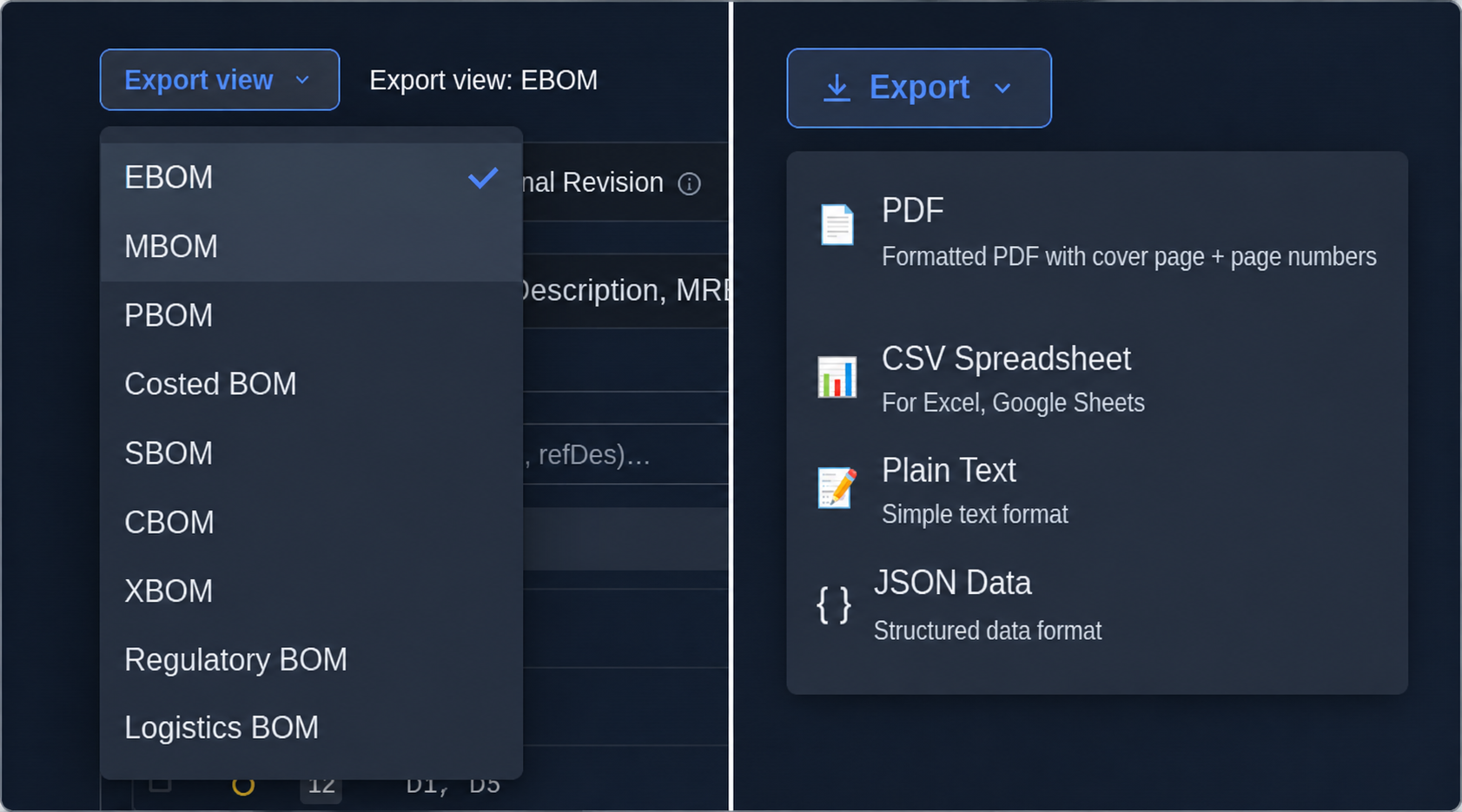
Toggle Consolidated view and Export. → Toggle Consolidate in the Export view to combine identical parts into a purchasing view while retaining all reference designators (refDes). Select the required Export view (EBOM, MBOM, PBOM, Costed BOM, SBOM, CBOM, XBOM, Regulatory BOM, Logistics BOM, etc.) to choose the appropriate column set. Then click Export and select the required format, such as PDF, Stamped PDF, CSV, TXT, or JSON, to generate the export.
▶ Export▼ Export
Mechanics
- Master-detail parts table · Flat ↔ Consolidated view
- Clean up this BOM (AI-powered BOM review + apply)
- Complete from DigiKey (live DigiKey match + apply)
- Compare distributors (Nexar/Octopart multi-distributor offers + second sources)
- Check supply risk (lifecycle, stock, authorized-seller counts and real BOM-cost roll-up)
- Export-view column sets (EBOM/MBOM/PBOM/Costed/SBOM/…)
- Export: PDF · stamped PDF · CSV · TXT · JSON