Requirements
Video transcript
00:04 — Two ways to start
Requirements begin one of two ways. Generate with AI drafts the entire document from a single prompt — every applicable category of the V-model in one pass. Or build it yourself, from a blank document or a CSV import, with the agent on call to interview you and draft, category by category. Either way you end up with the same structured, change-controlled document.
00:36 — A complete, categorised document
Here is a generated document. Requirements come out grouped by category — functional, power, safety, thermal, EMC, environmental and more — and every one carries a stable, traceable ID from the moment it is written, checked against design-input standards. A day of writing becomes a ninety-second draft that a reviewer refines.
01:07 — Refine, under change control
Refine it however you like — edit inline, add from the category cards, or set Document Info, the purpose and scope every export carries. And every document is change-controlled: branch a follow-on to explore a change, and every save is a revision you can compare — the diff panel shows exactly what was added, removed or edited, line by line.
01:35 — The agent, pinned to your document
And the agent is always on call, pinned to whatever document you have open. Ask it to interview you, draft requirements, or trace them up to their parents. It batches its changes into a follow-on you review in the diff panel and merge — never a silent edit. Requirements you can trust, from the first line to the last.
The first artifact on every node — everything else derives from it.
What it's for
ReqGen generates a structured set of requirements based on the project context and the selected hierarchy node. The main view displays requirement category cards, while “View All” opens a tabbed table showing the requirements in each available category. Each category may contain different fields and columns depending on the requirement type. Every requirement is assigned a unique, self-describing ID, and applicable compliance fields such as DAL, ASIL, SIL, and SW Class can be included.
When to use it
Use ReqGen early in the system engineering process to define and structure requirements for the current hierarchy node before deriving any downstream artifacts.
How it works
-
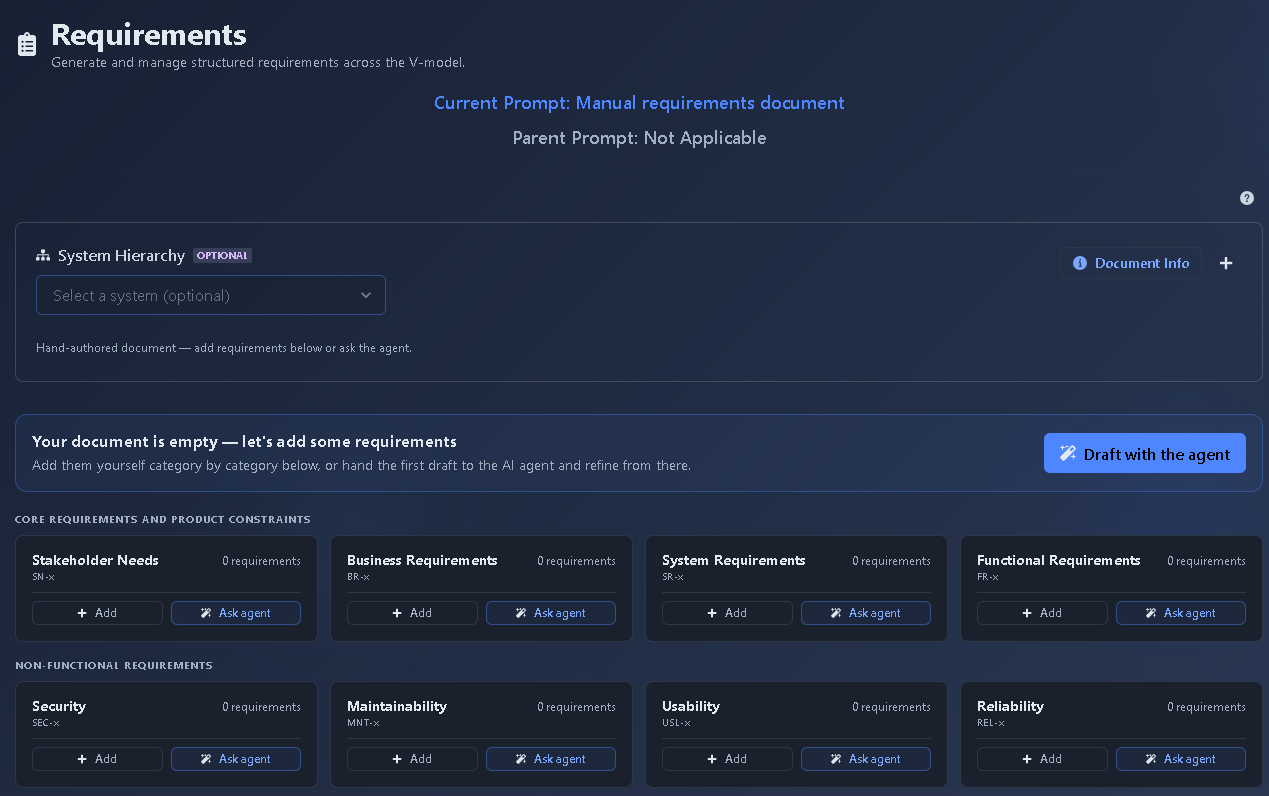
Select a System Hierarchy node, then pick a path — “Generate with AI” or “Build it yourself”. → System selection is optional. If you choose “Build it yourself”, select either “Create a blank document” or “Import from CSV” and continue creating your requirements. If you choose “Generate with AI”, enter and run a prompt describing your project and requirements, and the AI generates the requirements based on your prompt.
▶ Initial state▼ Initial state
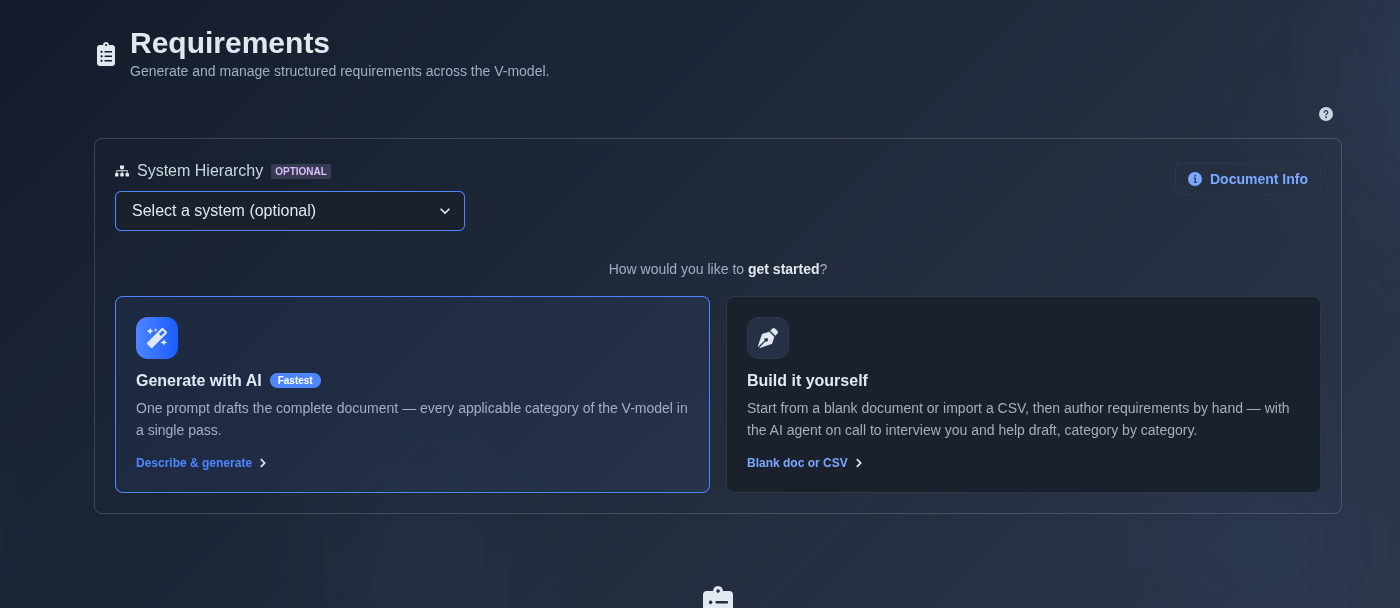
-
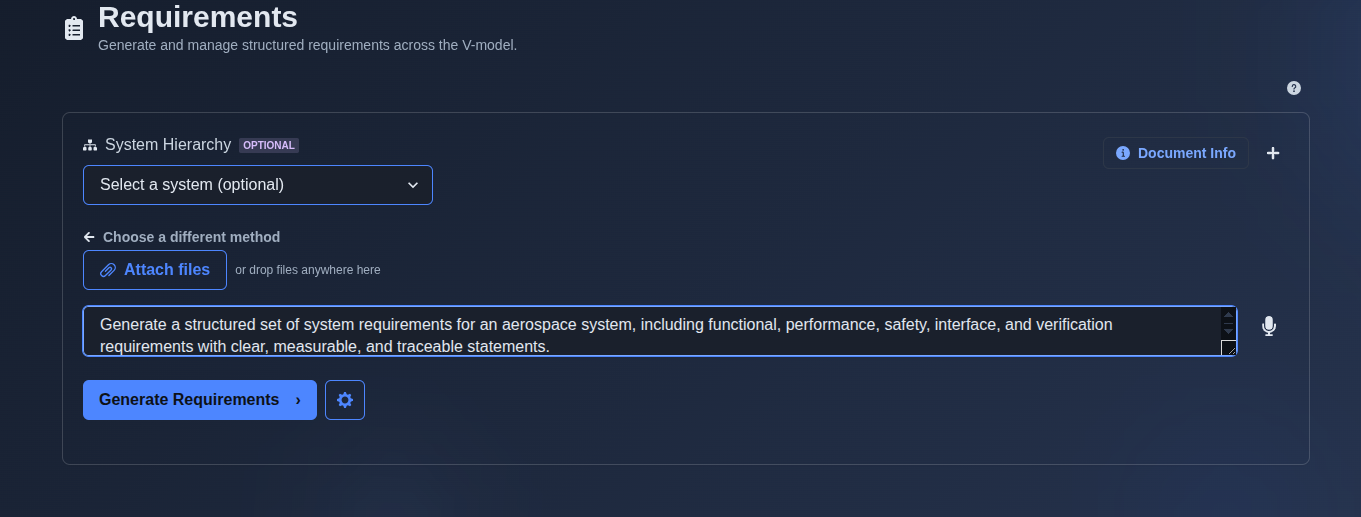
Generate requirements with AI → Describe your project or specify the requirements you want to generate in the prompt input area. Run the prompt, and the AI generates the requirements based on the information you provided. Selecting a system is optional and can be used to provide additional context for the requirement generation.
▶ Generate requirements with AI▼ Generate requirements with AI
-
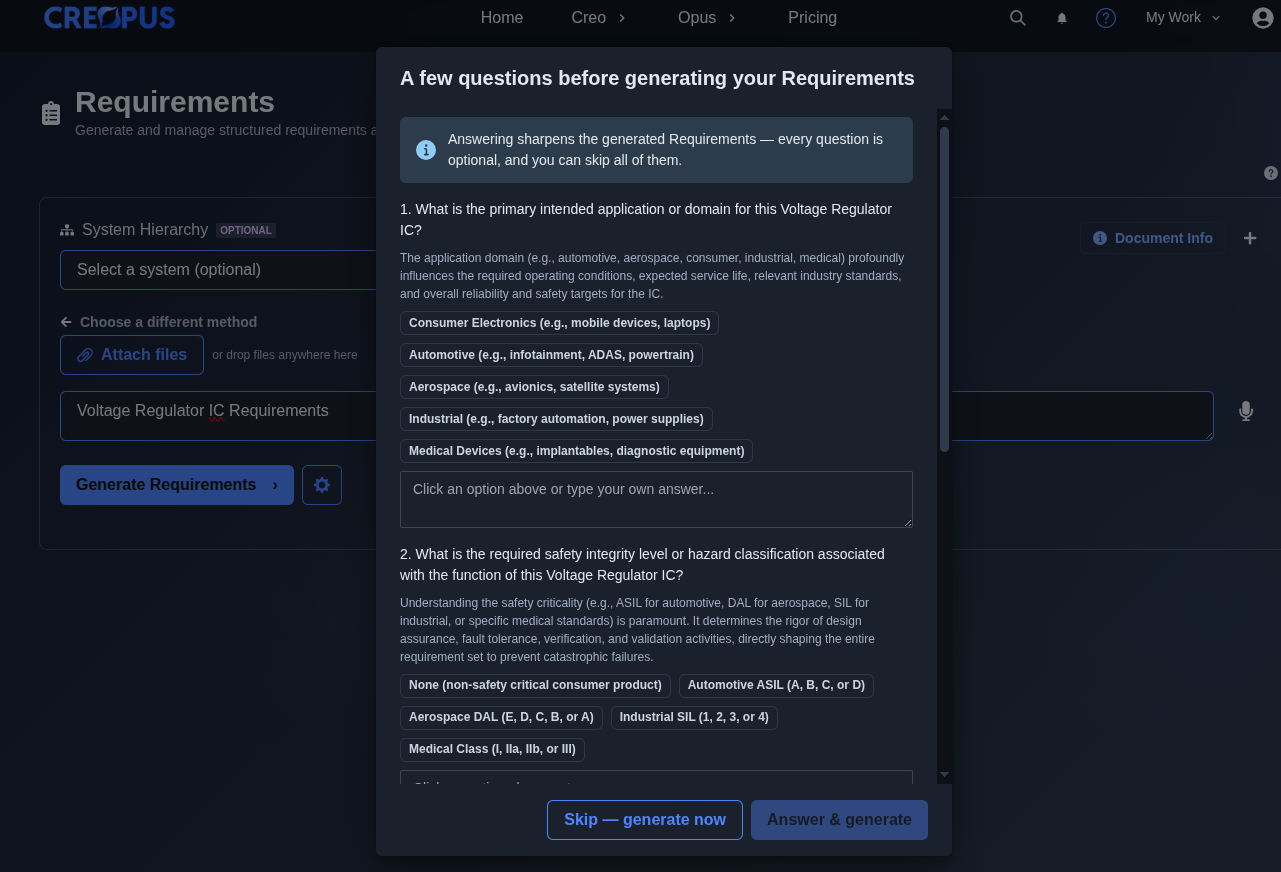
Answer the AI-generated questions, then click “Answer & generate” or “Skip — generate now”. → After you run the prompt, the AI asks a few optional questions to better understand your project and requirement needs. Review each question and provide the relevant answers, or skip the questions and generate the requirements directly. The AI then generates the requirements based on your prompt and any answers provided.
▶ Answer AI-generated questions▼ Answer AI-generated questions
-
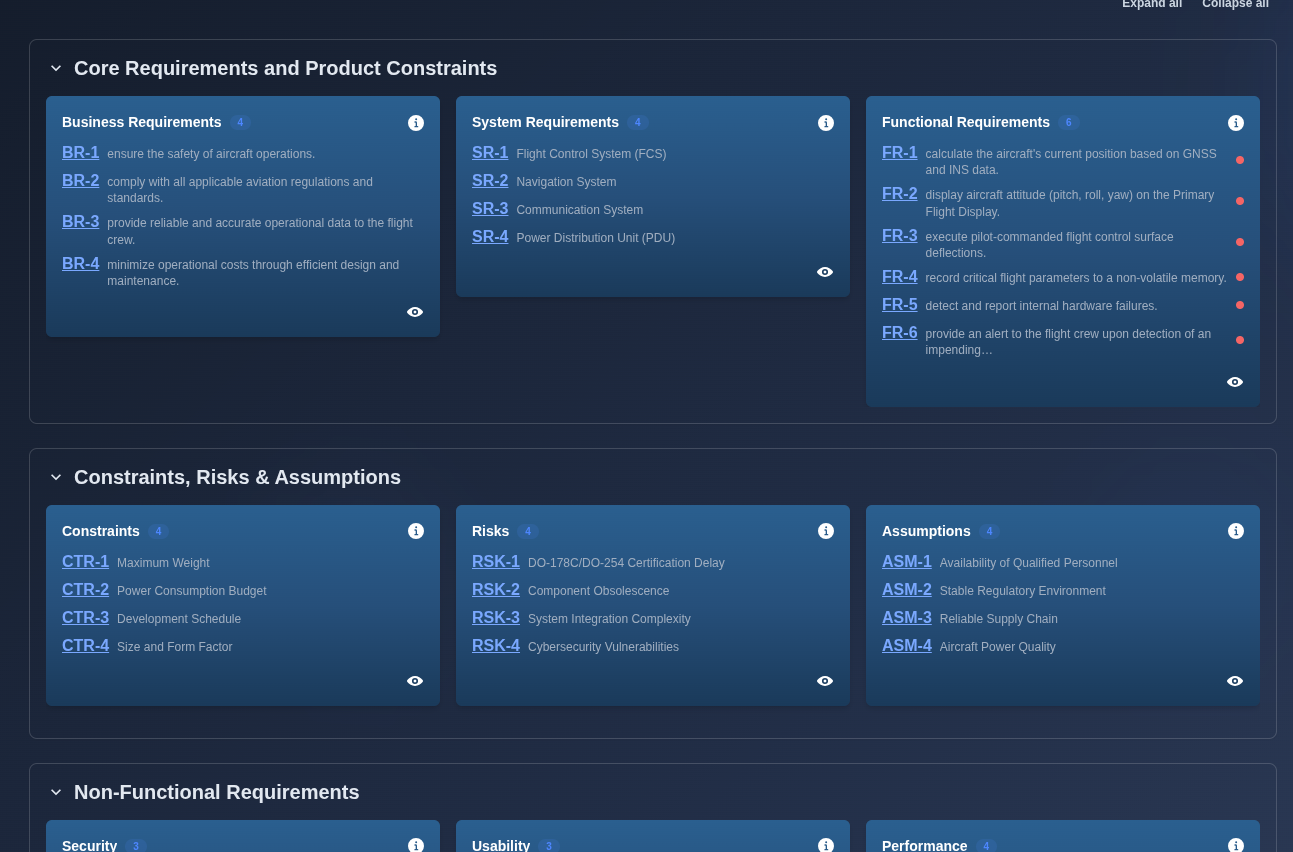
Review the AI-generated requirements. → The AI generates requirements across the available requirement categories, such as Business Requirements, System Requirements, Functional Requirements, Constraints, Risks, Assumptions, Security, Usability, Performance, and other applicable categories. Each requirement has a unique ID, such as BR-1, SR-1, FR-1,etc.., with priority indicated by colored dots: red for High, yellow for Medium, and green for Low. A Traceability Matrix is also provided to show how requirements are linked and derived from related requirements or sources.
▶ Review AI-generated requirements▼ Review AI-generated requirements
-
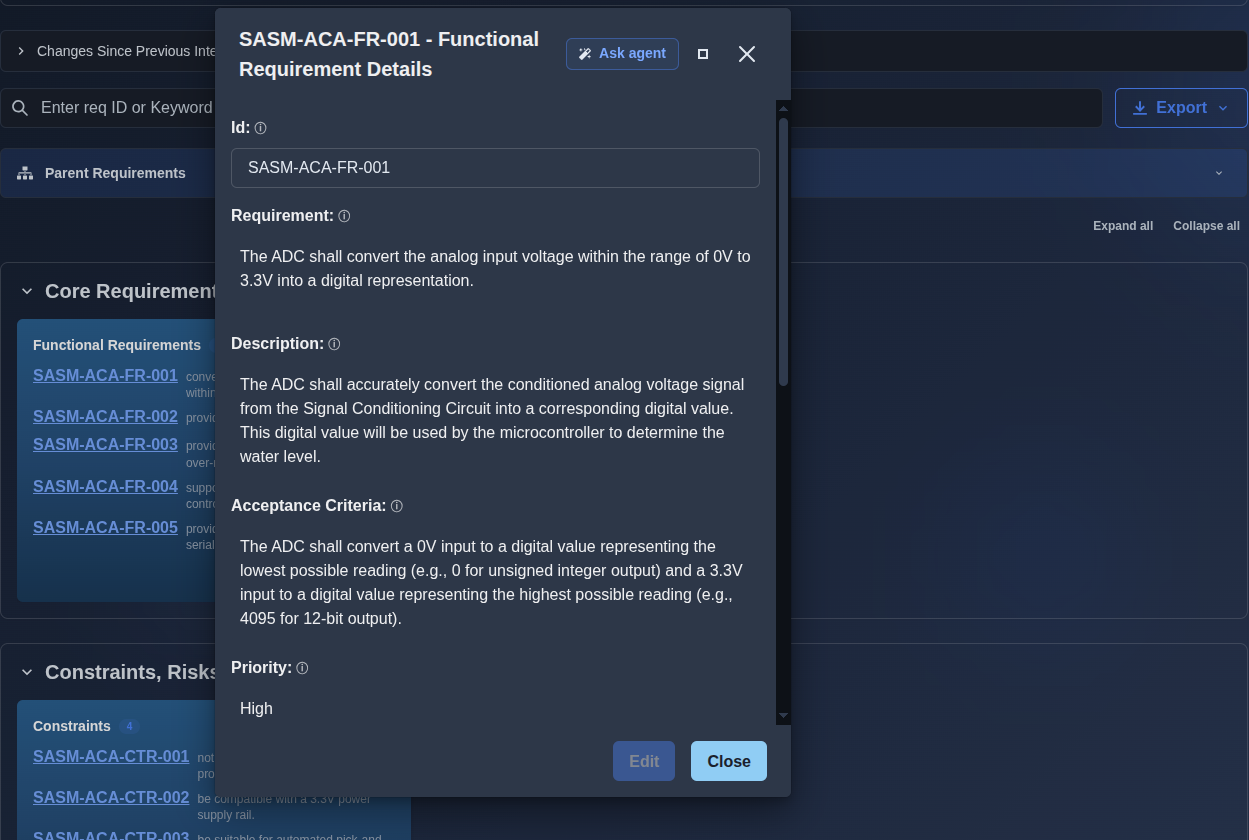
Open a requirement (its ID is a link) to edit it, or use the per-row discussion. → Click the Requirement ID to open the requirement details in read-only mode in the Main Prompt View. The details display all applicable fields, including ID, Requirement, Description, Stakeholder, Approval Status, Design Assurance (ARP4754A / DO-178C / DO-254), Design Assurance Level (DAL), and Safety-Significant status. In Follow-on Prompt View, click Edit to update the required fields, then click Save to apply the changes.
▶ Requirement details panel▼ Requirement details panel
-
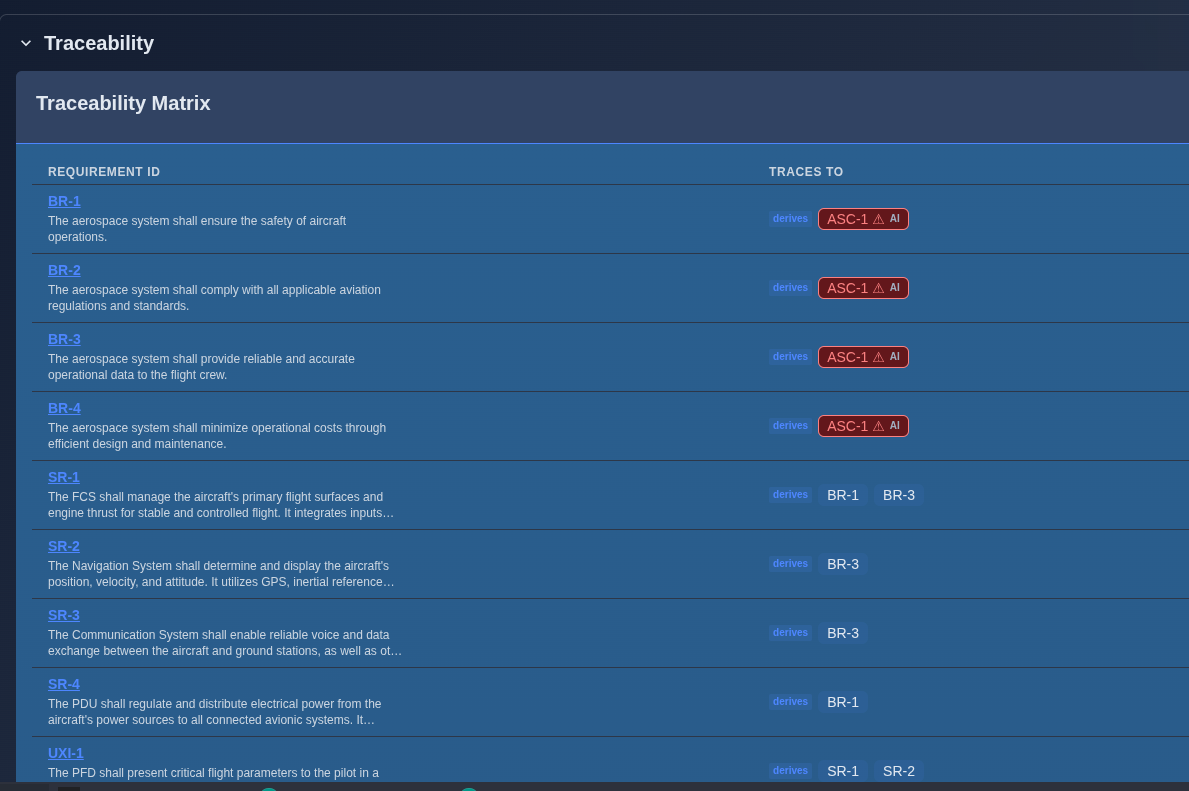
Open the Traceability panel to view and manage requirement links across levels. → The Traceability Matrix displays each requirement and the requirements or sources it traces to, showing relationships such as “derives” between different requirement levels.traceability links that surface in the Traceability tab.
▶ Traceability Matrix▼ Traceability Matrix
-
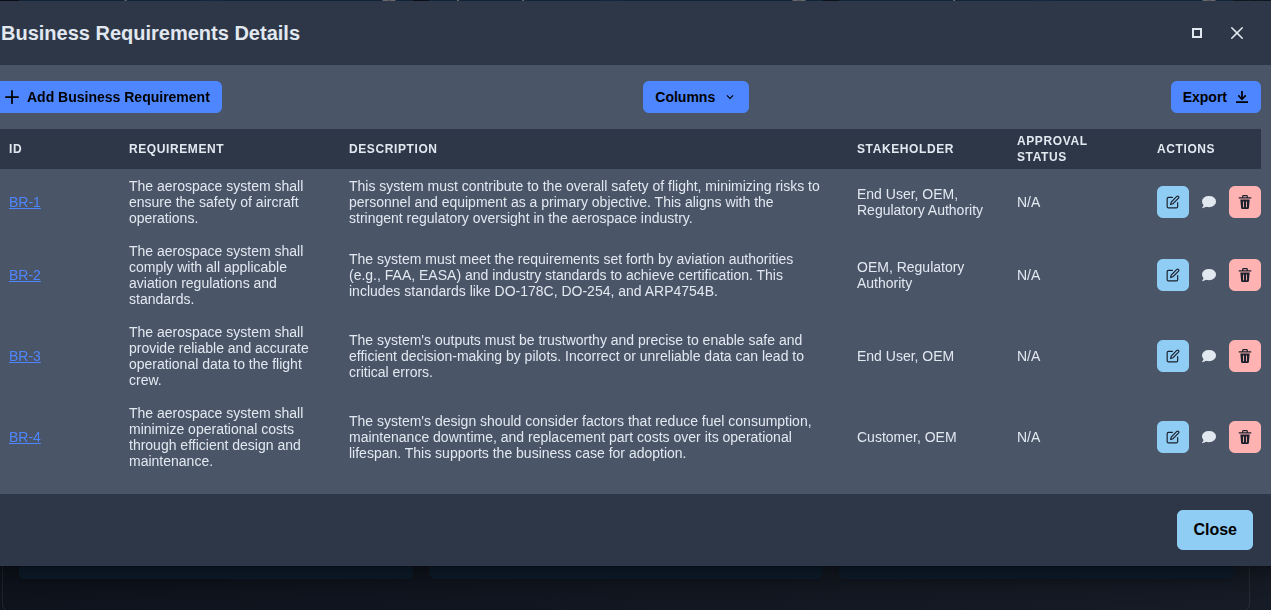
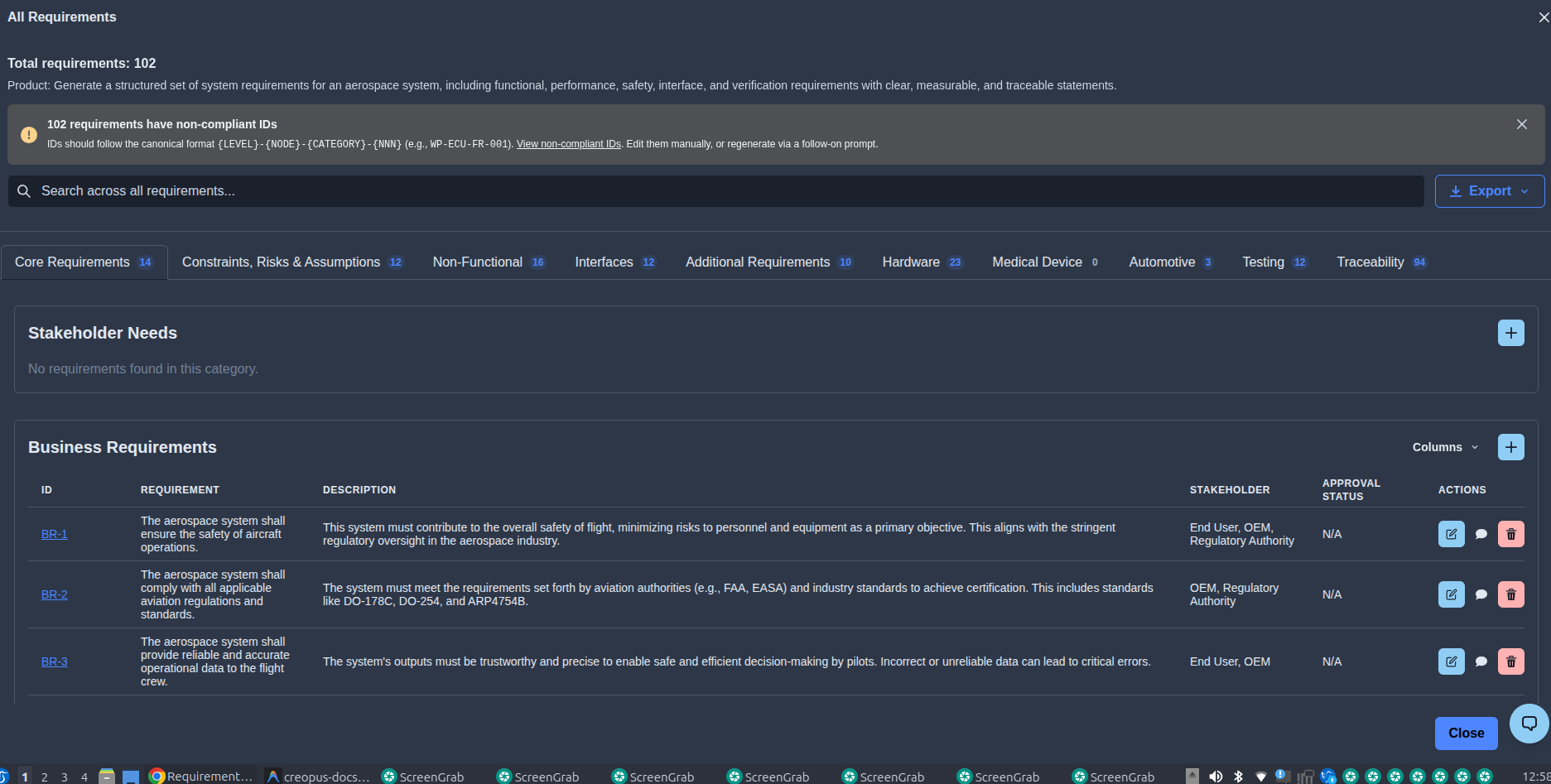
Click the eye icon for a requirement category, such as Business Requirements, to view all requirements in that category. → All requirements in the selected category are displayed in a read-only table, with columns based on the selected requirement category. For example, Business Requirements display ID, Requirement, Description, Stakeholder, Approval Status, and Actions. The available fields and columns may vary depending on the requirement category. In the Main Prompt View, requirements are read-only, while in Follow-on Prompt View, you can add, edit, or delete requirements. When the Follow-on Prompt changes are merged, the Main Prompt data is updated with the latest changes.
▶ Requirement category view▼ Requirement category view
-
Click “View All” to view all requirement categories and their requirements. → All available requirement categories are displayed as tabs, such as Core Requirements, Constraints, Risks & Assumptions, Non-Functional, Interfaces, Additional Requirements, Hardware, Medical Device, Automotive, Testing, and Traceability. Select a category tab to view the requirements available in that category. In the Main Prompt View, requirements are view-only, while in Follow-on Prompt View, you can add, edit, or delete requirements. When the Follow-on Prompt changes are merged, the Main Prompt data is updated with the latest changes.
▶ All requirement categories▼ All requirement categories
-
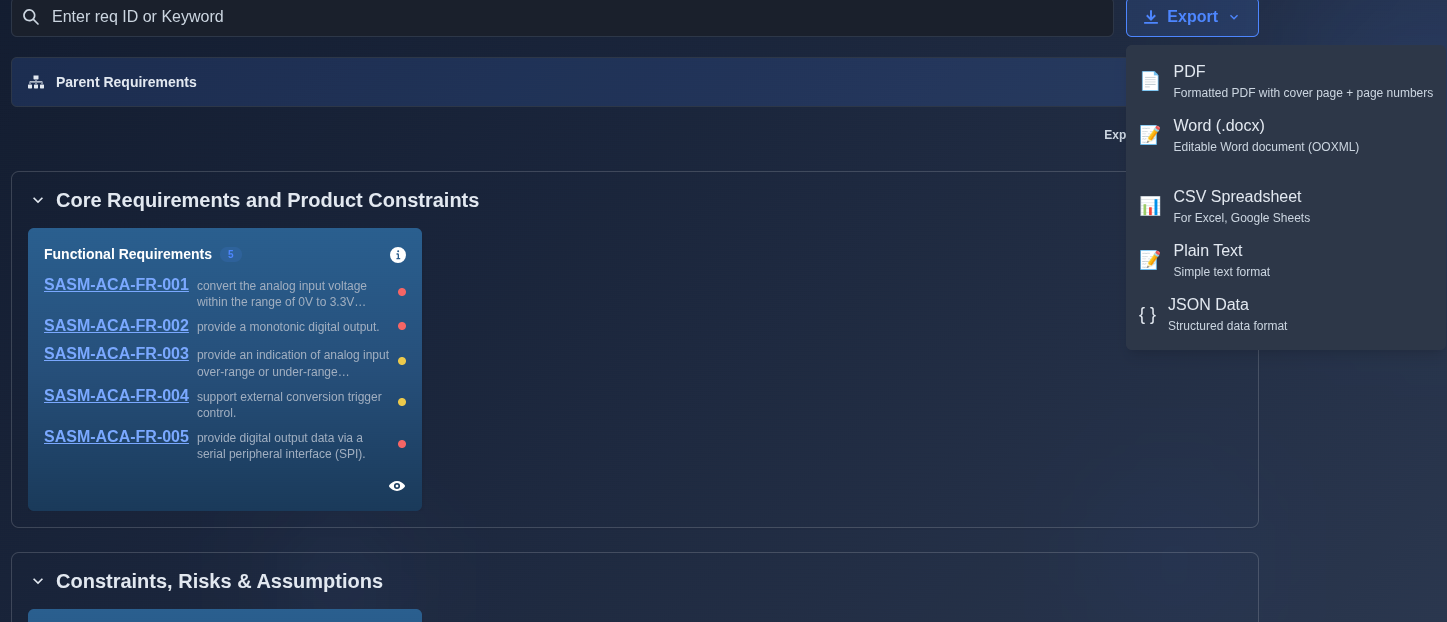
Click Export. → The requirements can be exported in PDF, Word (.docx), CSV Spreadsheet, Plain Text, or JSON Data format.;
▶ Export requirements▼ Export requirements
Mechanics
- Category cards + tabbed “View All” full table for all requirement categories
- Requirement categories may vary based on the generated output, including Core Requirements, Constraints, Risks & Assumptions, Non-Functional, Interfaces, Additional Requirements, Hardware, Medical Device, Automotive, Testing, and Traceability, etc
- Unique requirement IDs · category-specific fields and columns · priority indicators
- Main Prompt View is read-only · Follow-on Prompt View allows add, edit, and delete
- Traceability Matrix shows links between related requirements across levels
- Per-item discussion · per-item review Sign-off · pre-generation clarify questionnaire
- Export: PDF · Word (.docx) · CSV Spreadsheet · Plain Text · JSON Data