CAPA
Track corrective and preventive actions from issue to verified closure.
What it's for
CAPA (Corrective and Preventive Action) manages the full lifecycle of quality issues in regulated environments — from the initial nonconformance or complaint through root-cause investigation, corrective and preventive action planning, to verified closure. Each CAPA record tracks its source and risk classification, links to root-cause analysis (standalone or via an RCCA artifact), itemizes corrective and preventive actions with owners and due dates, and records effectiveness verification with a full audit trail.
When to use it
Use CAPA when a nonconformance, audit finding, customer complaint, or process deviation requires a formal corrective or preventive action with root-cause investigation, action tracking, and effectiveness verification — especially in ISO 9001, AS9100, IATF 16949, or FDA-regulated environments.
How it works
-
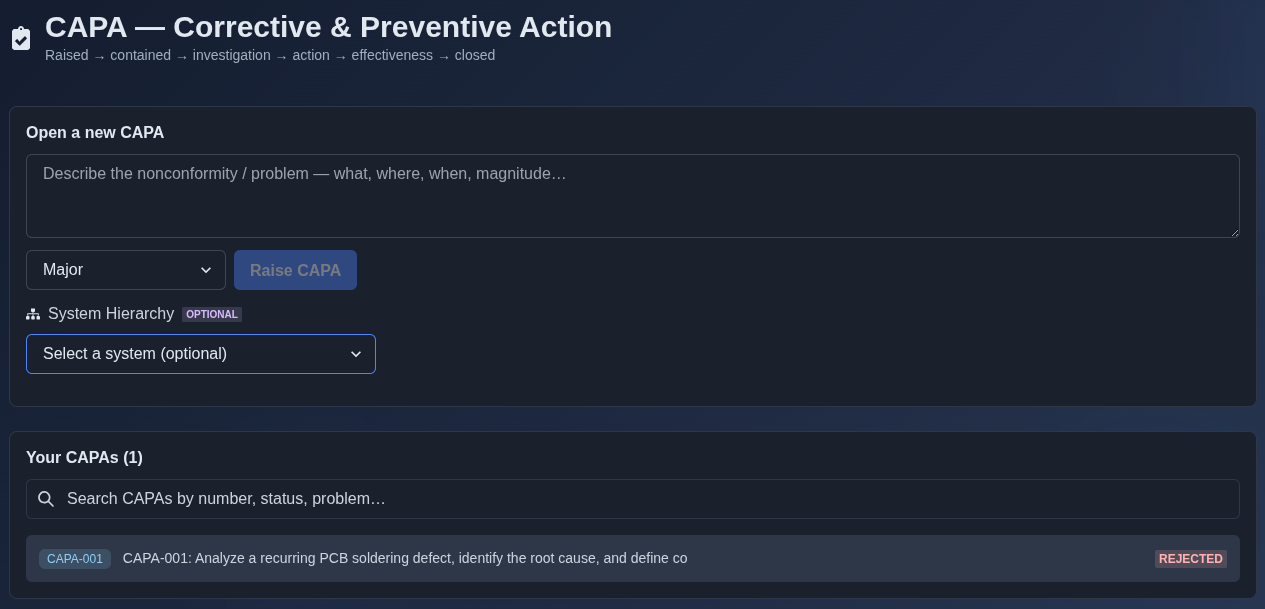
Open the CAPA module. → The system displays the "CAPA — Corrective & Preventive Action" overview showing the lifecycle stages (Raised → contained → investigation → action → effectiveness → closed). An "Open a new CAPA" form is presented with an empty problem description field, severity dropdown defaulted to "Major", a disabled "Raise CAPA" button, and an optional "System Hierarchy" selector. Below, the "Your CAPAs" section lists existing records alongside a search bar.
▶ Initial state▼ Initial state
-
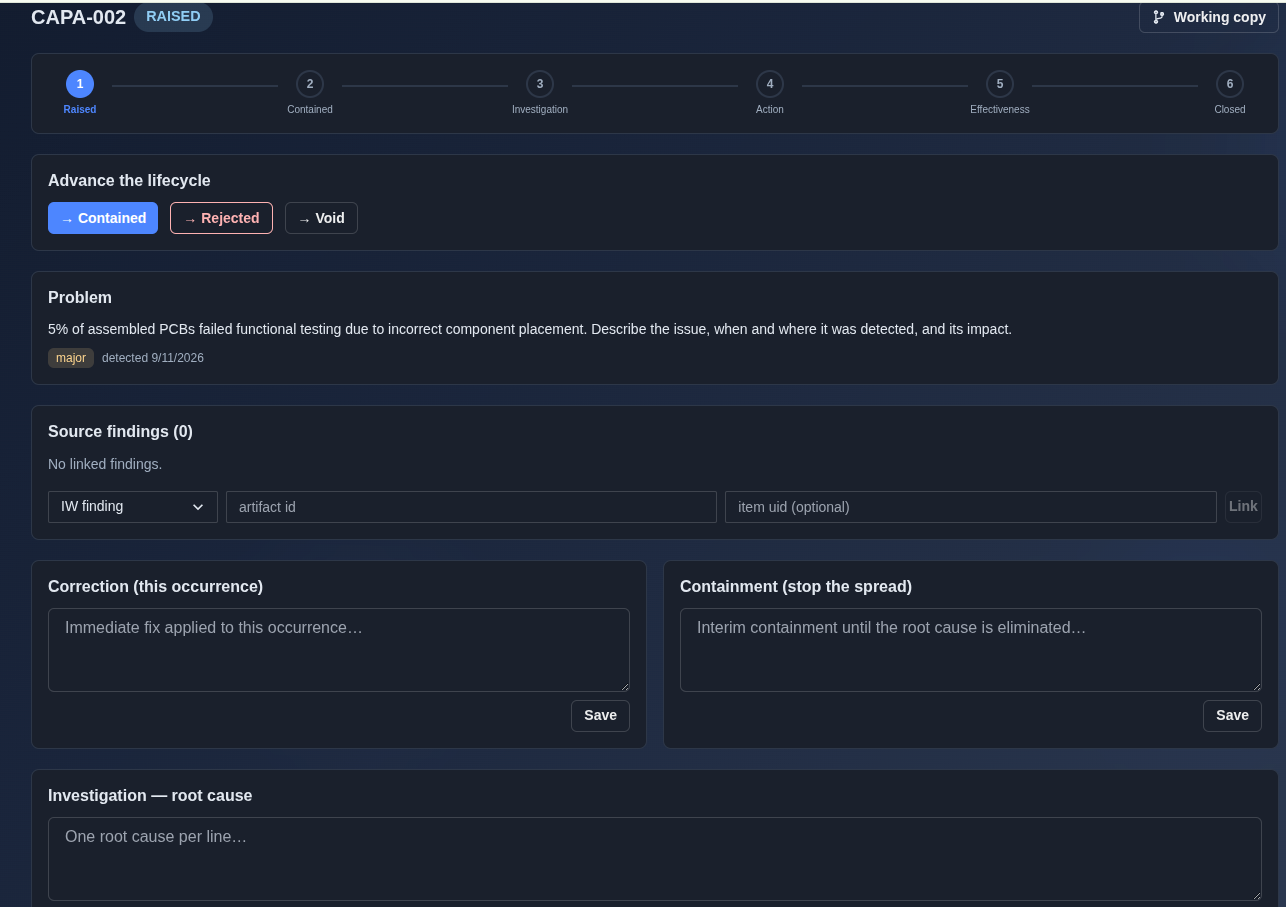
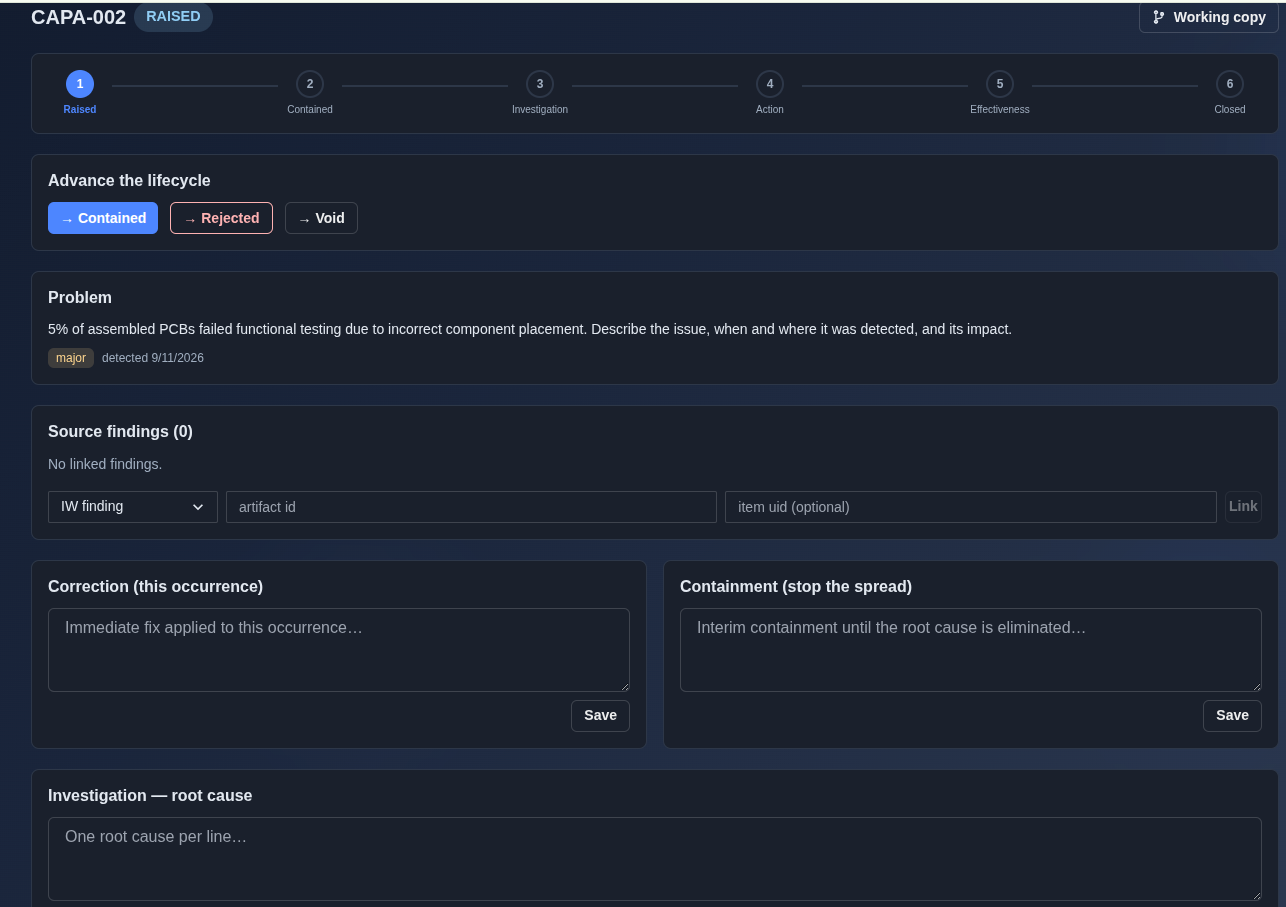
Raise a new CAPA. → The system creates a new record "CAPA-002" with the status set to "RAISED" (step 1 of the 6-stage lifecycle) in Working copy mode. It records the submitted problem description, assigns the severity tag "major" with the detection date, and opens the lifecycle transition controls (Contained, Rejected, Void). The detail view initializes sections for Source findings, Correction, Containment, Root cause investigation, Corrective & preventive actions, and enables the "AI draft assistant" to generate draft proposals.
▶ New capa▼ New capa
-
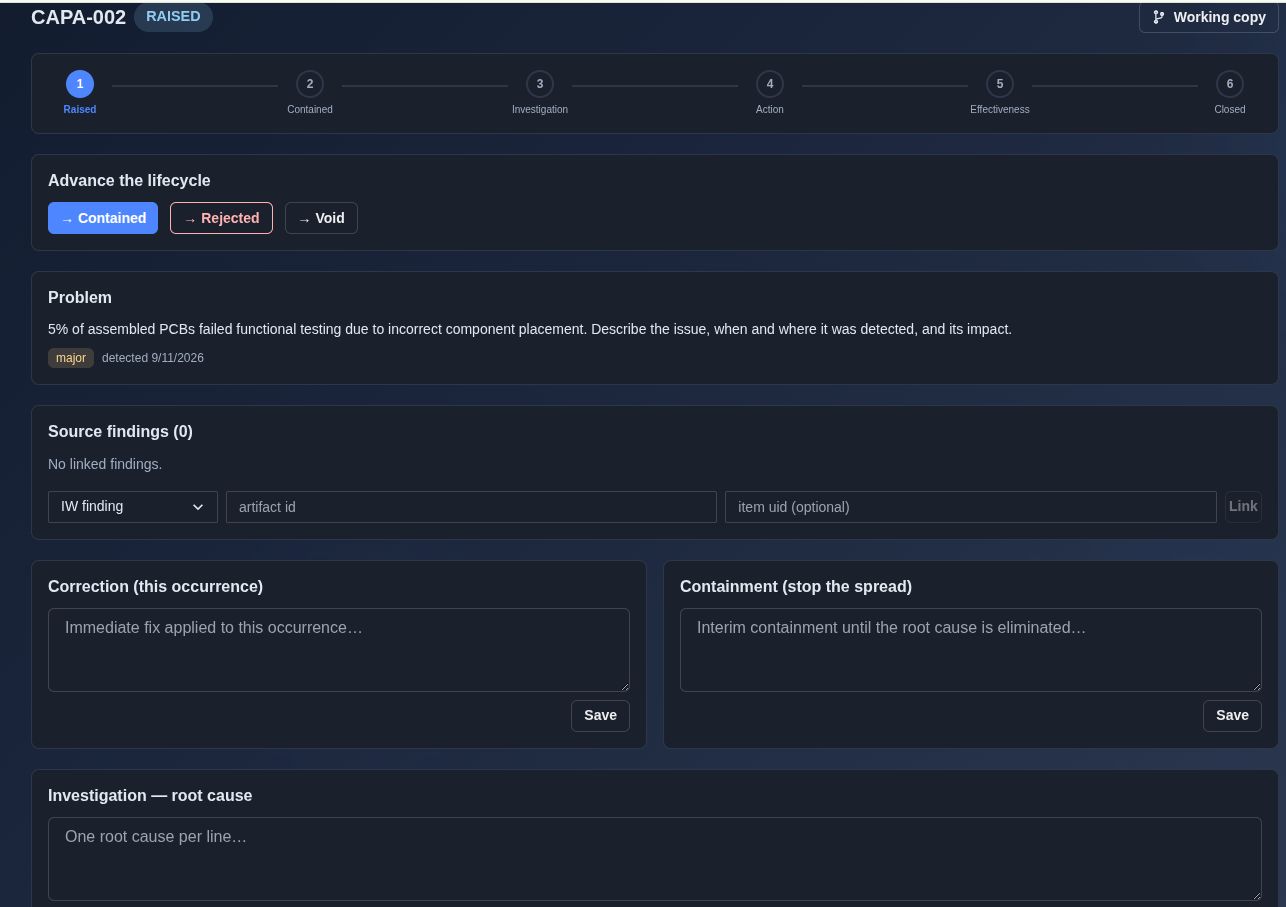
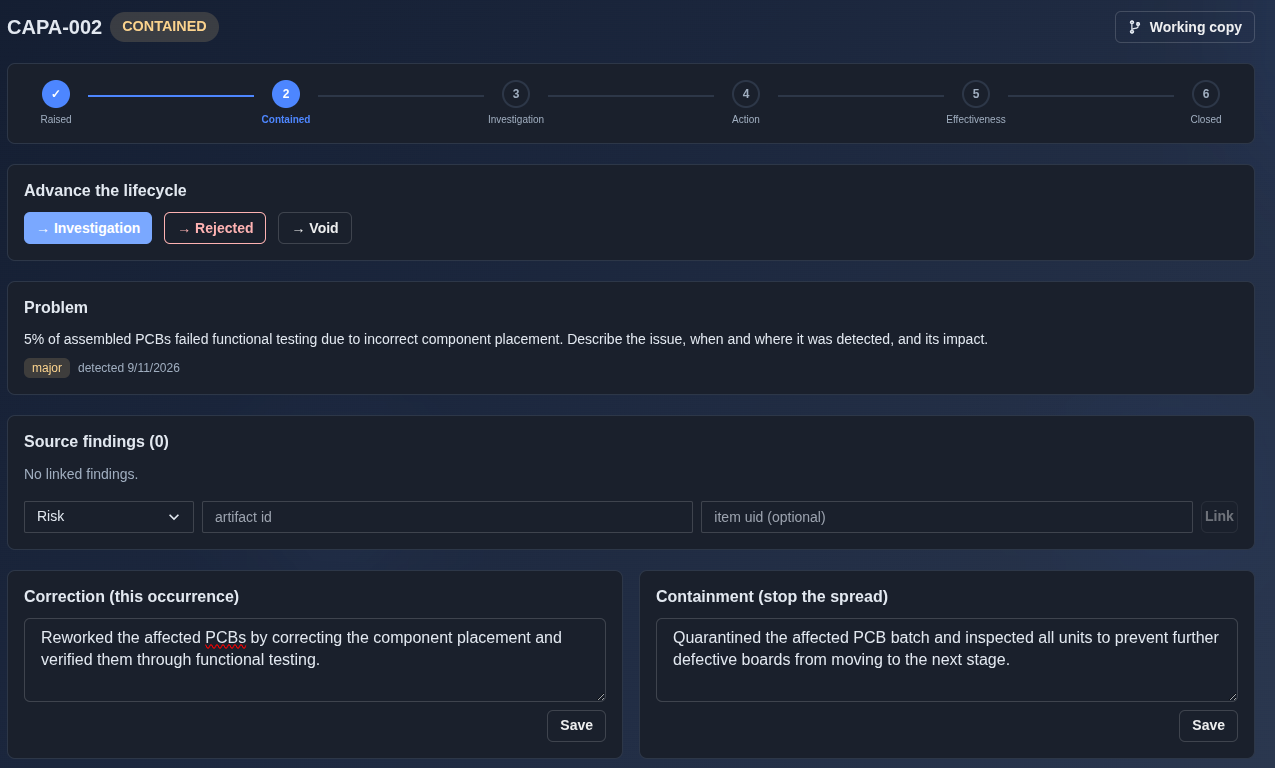
Advance CAPA to Contained. → Click the "→ Contained" button to advance the lifecycle from stage 1 (Raised) to stage 2 (Contained). The status badge updates to "CONTAINED", the tracker marks "Raised" with a checkmark and highlights "Contained", and the lifecycle controls update to show the next transition option, "→ Investigation", alongside "Rejected" and "Void".
▶ Contained▼ Contained
-
Record root cause investigation and advance to Investigation stage. → Enter the root-cause analysis details into the "Investigation — root cause" field (with optional RCCA artifact ID) and click "Save". Transitioning the lifecycle updates the record badge to "INVESTIGATION", marks stages 1 and 2 with checkmarks, highlights stage 3 (Investigation), and updates the lifecycle transition controls to show "→ Action", "Rejected", and "Void".
▶ Investigation▼ Investigation
-
Corrective and preventive actions. → Review the action items, including the action ID, description, type (corrective or preventive), assigned owner, target due date, current status (open, in progress, completed, or verified), and completion date. Add, edit, or remove actions as the investigation evolves.
▶ Corrective and preventive actions▼ Corrective and preventive actions

-
Verification & effectiveness. → Review the verification section, which records the effectiveness check method, verification date, verifier, and outcome (effective, partially effective, or ineffective). If verification fails, the CAPA can be reopened or escalated with a linked follow-up CAPA.
▶ Verification & effectiveness▼ Verification & effectiveness

-
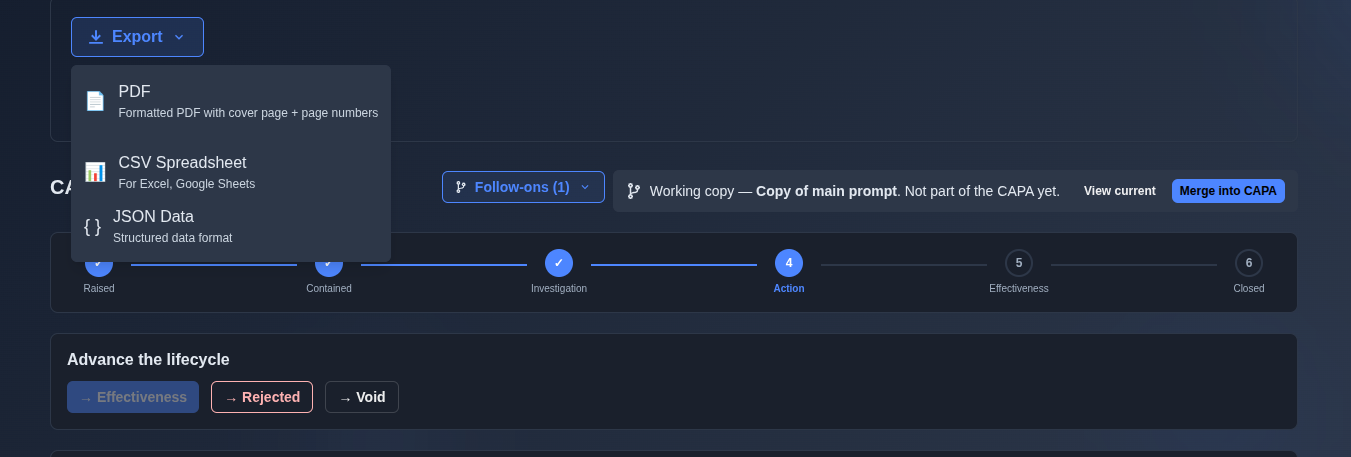
Export the CAPA record. → Click "Export" and select the required output format: "PDF" for a formatted document with a cover page and page numbers, "CSV Spreadsheet" for spreadsheet-compatible data, or "JSON Data" for structured data.
▶ Export the CAPA record▼ Export the CAPA record
Mechanics
- 6-stage lifecycle: Raised → Contained → Investigation → Action → Effectiveness → Closed
- Lifecycle transition controls with Rejected and Void options at every stage
- Severity classification (Major, Minor, Critical) with detection date
- Working copy mode for in-progress edits
- Record sections: Source findings · Correction · Containment · Root cause investigation · Corrective & preventive actions
- Root-cause investigation with optional RCCA artifact linkage
- Corrective and preventive action tracking with owner, due date, and status
- Effectiveness verification with outcome recording (effective · partially effective · ineffective)
- AI draft assistant for generating draft proposals
- Your CAPAs list with search
- Export: PDF · CSV Spreadsheet · JSON Data