Pugh Matrix
Video transcript
00:04 — Pugh Matrix
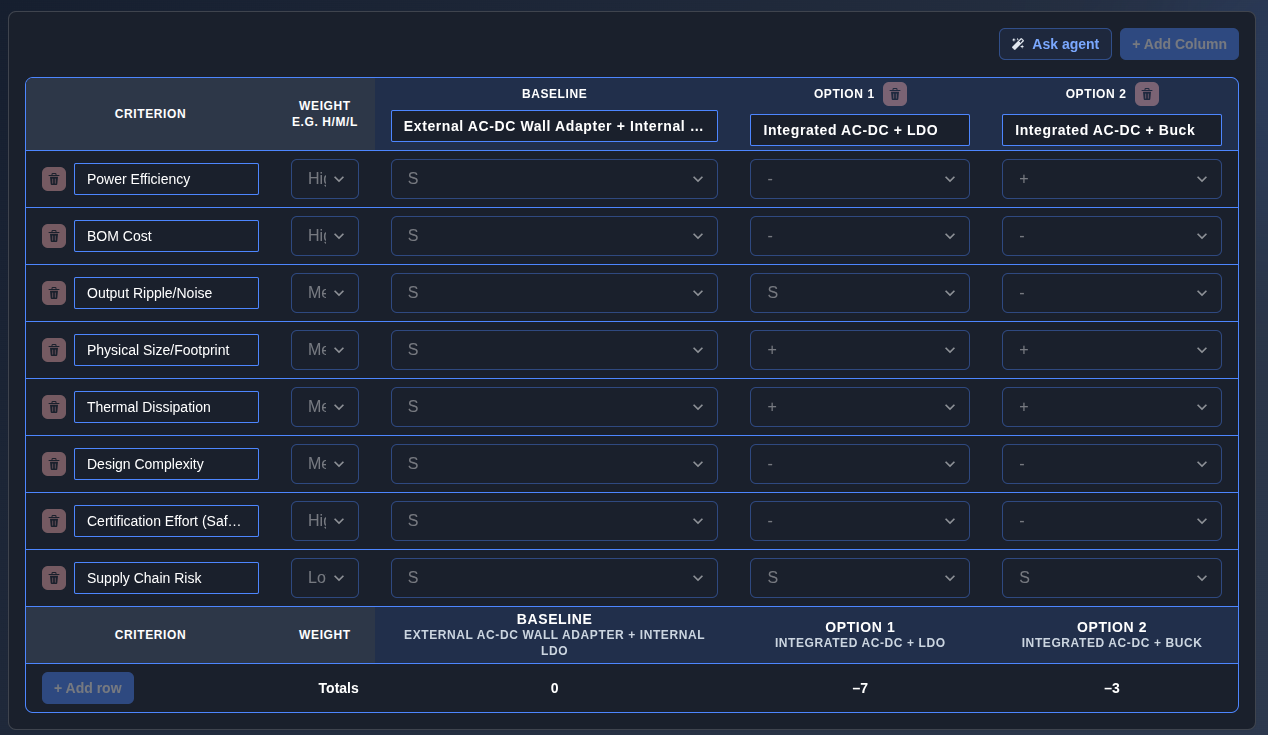
A Pugh matrix makes a design decision defensible — and you can build it with the agent. Start blank, then ask it to draft the trade study: concepts across the top, weighted criteria down the side, each scored plus, minus or same against a datum. Approve its work and here is the result — Creopus totals the weighted scores and surfaces the winner, so instead of a hallway argument you have a documented trade study showing exactly why one concept beat the rest.
Force-rank concepts against a baseline; flow the winner back.
What it's for
A weighted scoring grid for comparing alternatives — rows are evaluation criteria, each with an H/M/L weight and requirement-anchoring chips, while columns include a Baseline datum and one column per option. Score cells use + / − / S / ?, and the Totals row shows the live net weighted scores. A robustness verdict and a formal Decision Record (Analysis of Alternatives) provide a defensible basis for the trade study.
When to use it
For design decisions involving two or more alternatives, such as topology, component, architecture, or algorithm selection.
How it works
-
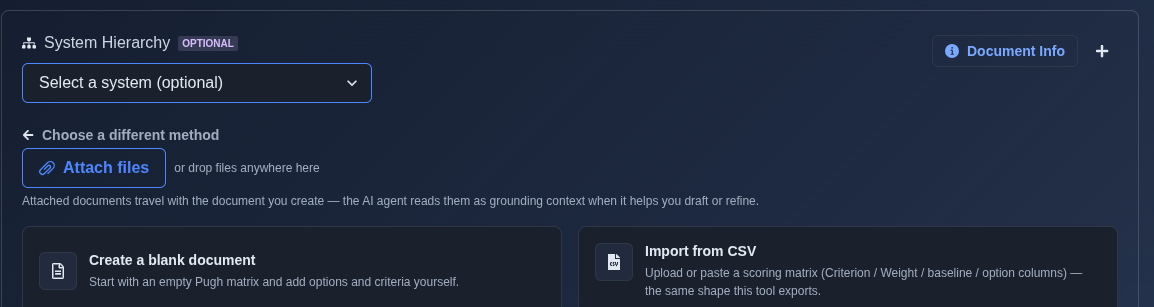
Generate with AI or build it yourself. → Select “Generate with AI” or “Build it yourself.” If “Generate with AI” is selected, enter a prompt describing the process, requirements, or failure scenarios you want to analyze, and run the prompt. The AI analyzes the provided information and generates the PFMEA. If “Build it yourself” is selected, choose either “Create a blank document” to build the PFMEA manually from an empty document, or “Import from CSV” to upload or paste a scoring matrix and create the PFMEA from the imported data.
▶ Initial State▼ Initial State
-
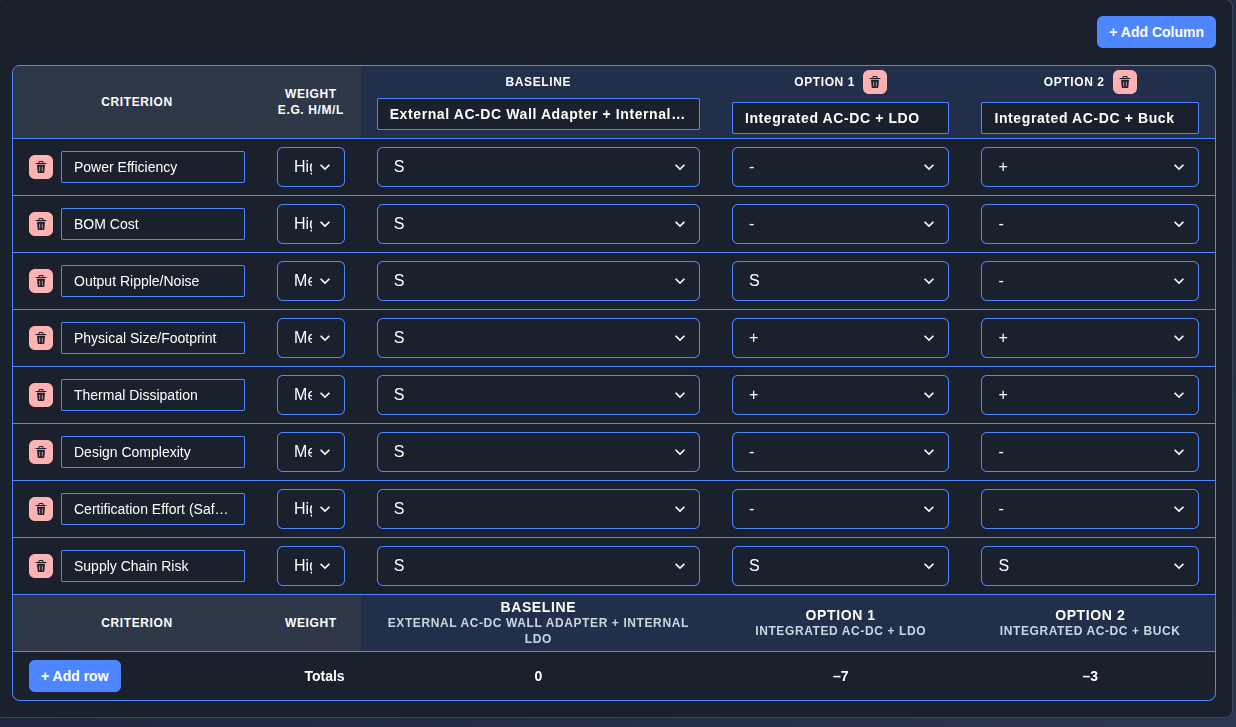
Add, edit, or delete process steps and failure modes. → Add new process steps and failure modes, edit existing failure-mode details such as effects, causes, and current controls, or delete items that are no longer required. For AI-generated PFMEAs, use Follow-on mode to perform these changes through a prompt. For manually created PFMEAs, make changes directly in the main prompt view: use “Add row” to add a new criterion and “Add Column” to add a new option. There is no separate Edit button; click the relevant field or cell and edit its value directly. Changes are autosaved.
▶ Add, Edit, or Delete▼ Add, Edit, or Delete
-
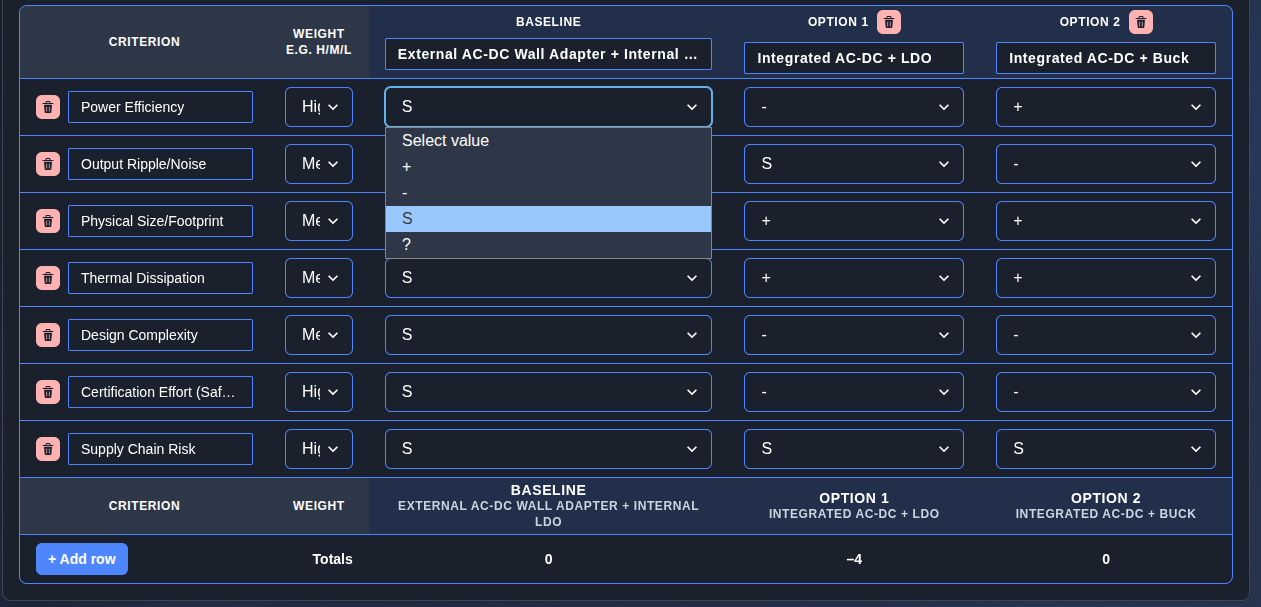
Evaluate options against the selected criteria. → Assign H (High), M (Medium), or L (Low) weights to each criterion using values 3, 2, and 1. Compare each option against the baseline using “+” for better, “−” for worse, “S” for the same, or “?” for unknown. The Totals row updates automatically to show the overall score for each option.
▶ Evaluate Options▼ Evaluate Options
-
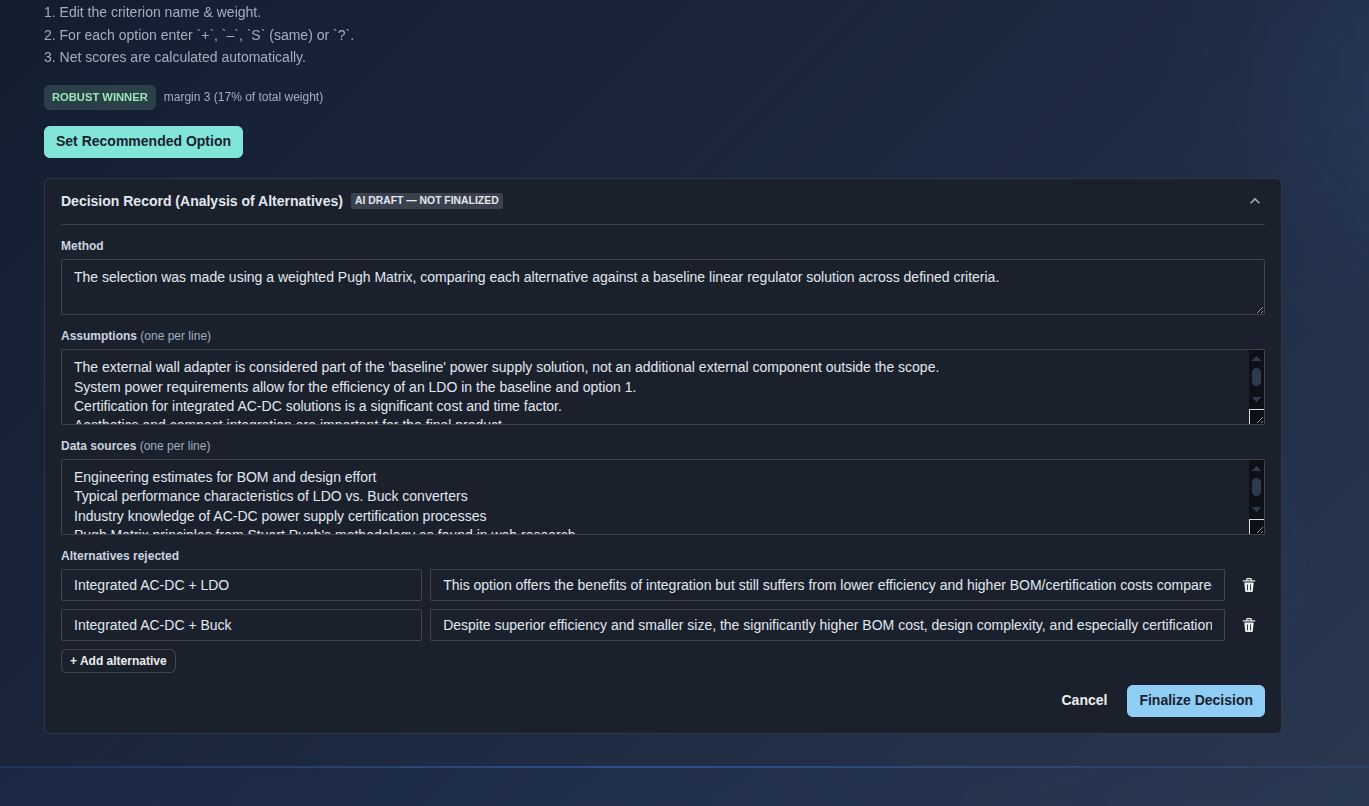
Set the recommended option and finalize the trade-study decision. → Review the “ROBUST WINNER” result, then click “Set Recommended Option” to select the preferred option. Complete the “Decision Record (Analysis of Alternatives)” with the Method, Assumptions, Data sources, and Alternatives rejected, then click “Finalize Decision” to save the decision.
▶ Set Recommended Option and Finalize Decision▼ Set Recommended Option and Finalize Decision
-
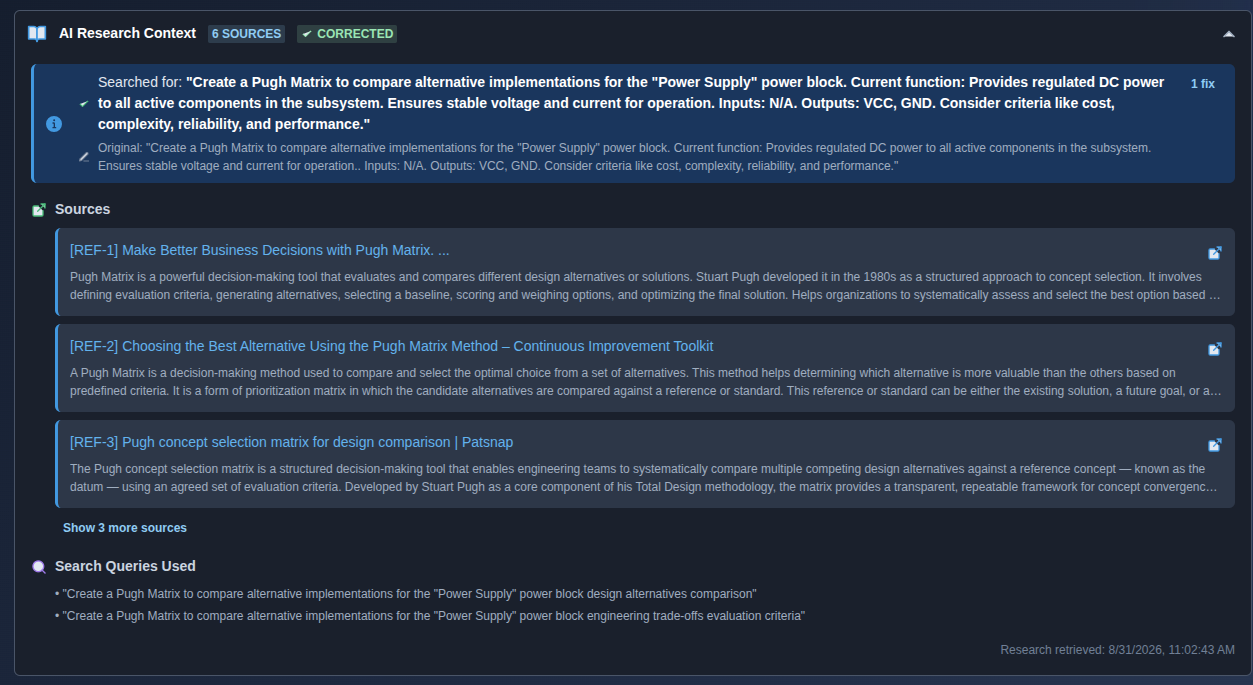
Open the AI Research Context. → Open “AI Research Context” to view the sources and research information used by the AI when generating or modifying the Pugh Matrix by clicking the expand arrow on the right side of “AI Research Context.”
▶ AI Research Context▼ AI Research Context
-
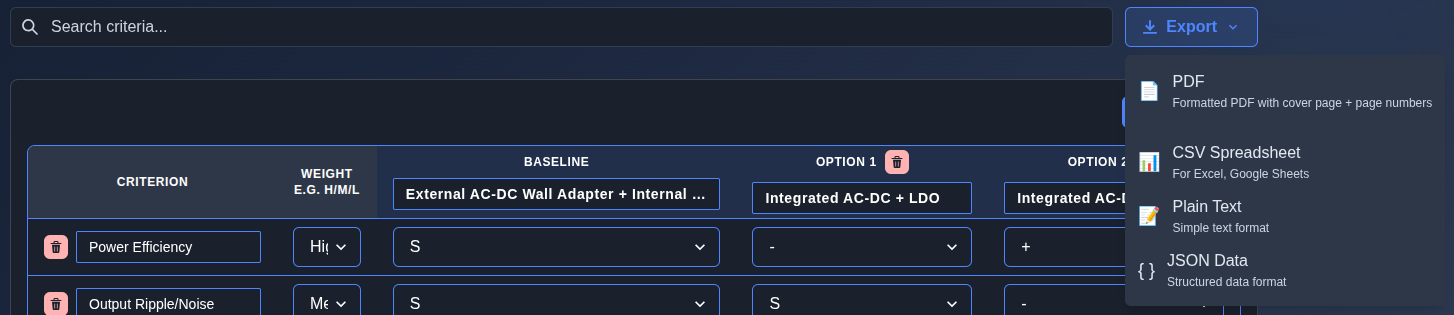
Export the Pugh Matrix. → Click “Export” and choose the required format: “PDF”, “CSV Spreadsheet”, “Plain Text”, or “JSON Data”.
▶ Export Pugh Matrix▼ Export Pugh Matrix
Mechanics
- Generate with AI or build it yourself
- Create a blank document or Import from CSV
- Baseline + dynamic option columns
- Add row / Add Column with inline editing
- H / M / L criterion weights (3 / 2 / 1)
-
- / − / S (same) / ? option scoring
- Live weighted Totals calculation
- ROBUST WINNER verdict
- Set Recommended Option
- Decision Record with Method · Assumptions · Data sources · Alternatives rejected
- Finalize Decision
- AI Research Context
- Export PDF, CSV Spreadsheet, Plain Text, JSON Data