Stage-Gate Checklist
Video transcript
00:04 — Checklist
Checklists keep a stage gate honest — and Creopus ships the standard ones. Start one from a curated gate template — here an aerospace Preliminary Design Review — instantiated in a click and scoped to your node. Its readiness checks probe that node’s real artifacts, auto-passing what’s evidenced and flagging what still gates sign-off, so when you reach the review, nothing quietly slips through.
Anchor PDR / CDR / TRR sign-off to NASA / AIAG templates.
What it's for
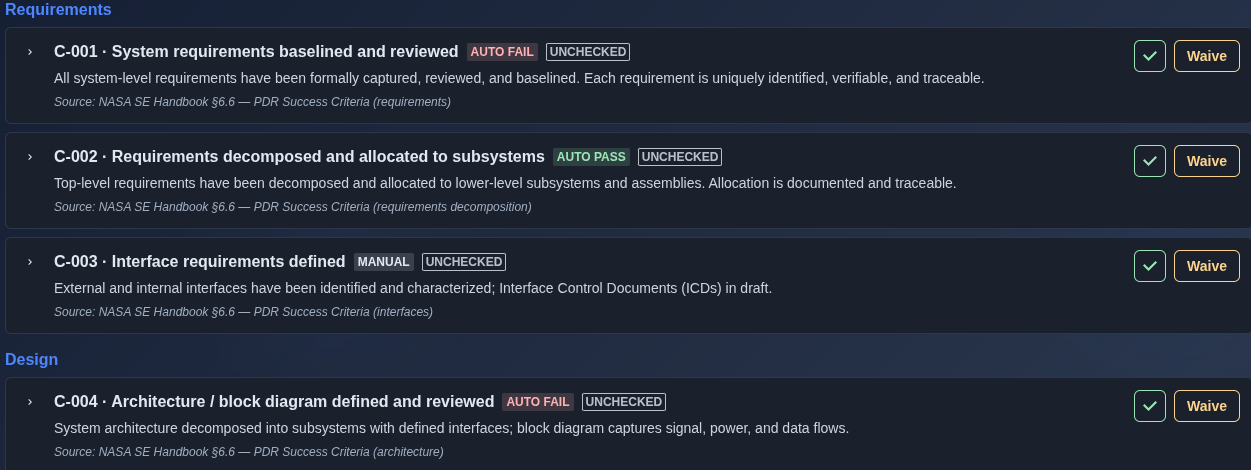
A stage-gate checklist scoped to a hierarchy node. Instantiate a published pack (Aerospace — NASA SE Handbook §6, Product Dev — AIAG APQP / INCOSE, or Stakeholder Validation — V&V) or a custom template you forked. A readiness dashboard (Readiness % · Checked/Total · Auto-passing · Blockers) sits above checklist items grouped by section; auto-checks can mark items AUTO PASS/FAIL, while remaining items can be manually checked or waived before signing off the gate.
When to use it
Use the Stage-Gate Checklist at each formal program gate (SRR, PDR, CDR, or PRR) to assess and document readiness against the selected standard or checklist pack.
How it works
-
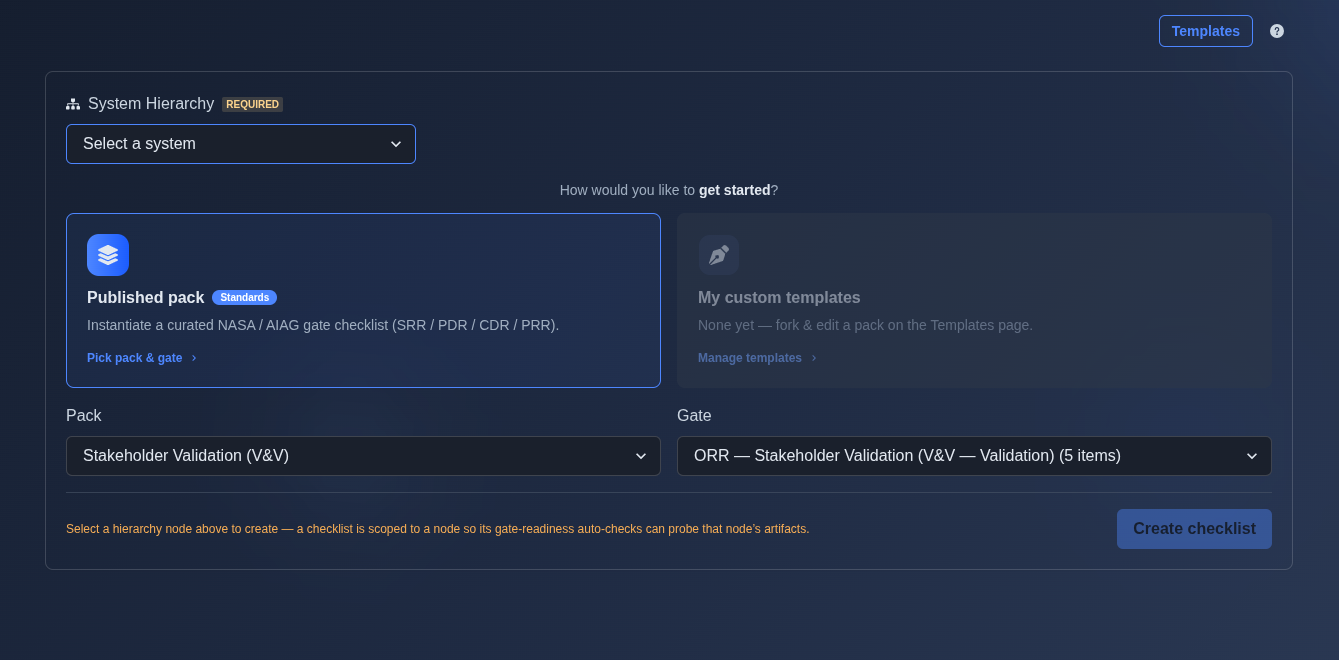
Select a System Hierarchy node. → Select the required hierarchy node. The checklist is scoped to the selected node so that gate-readiness checks can probe that node’s artifacts; the “Create checklist” button remains disabled until a valid node is selected.
▶ Initial state▼ Initial state
-
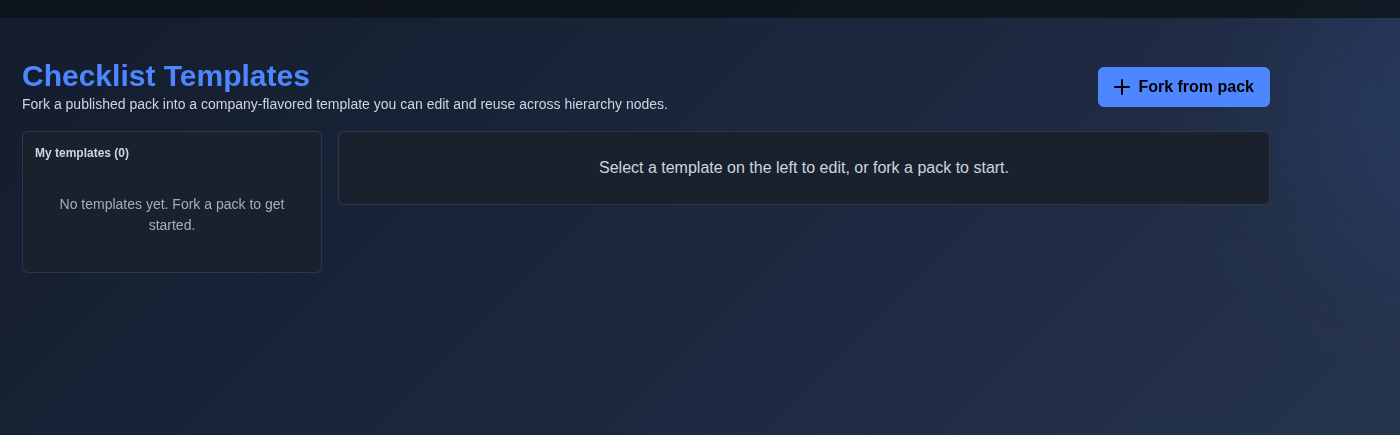
Templates. → Click “Templates” to open the Checklist Templates page, where you can view existing custom templates or fork a published pack to create a reusable company-specific template.
▶ Templates▼ Templates
-
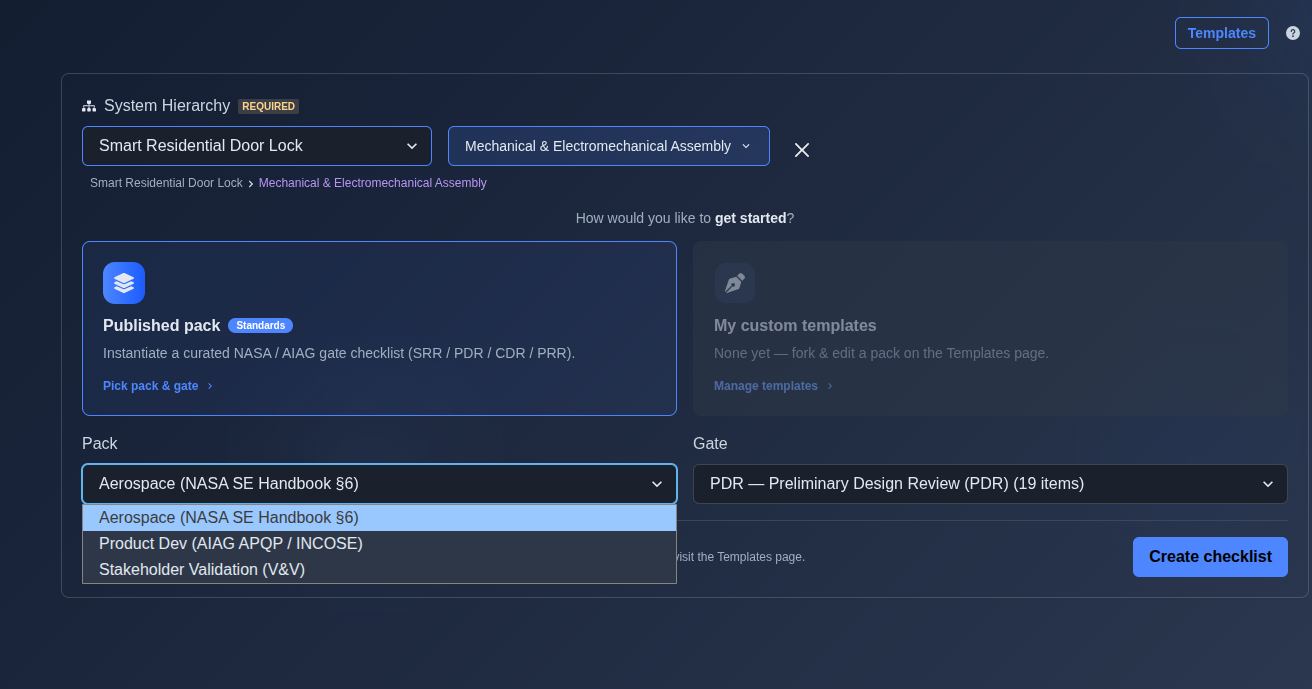
Select the system, node, pack, and gate. → Select the required system and hierarchy node, then choose a Pack and the applicable Gate. Available packs include “Aerospace (NASA SE Handbook §6),” “Product Dev (AIAG APQP / INCOSE),” and “Stakeholder Validation (V&V).” Available gates include “SRR — System Requirements Review (SRR),” “PDR — Preliminary Design Review (PDR),” “CDR — Critical Design Review (CDR),” and “PRR — Production Readiness Review (PRR).”
▶ Select system, node, pack, and gate▼ Select system, node, pack, and gate
-
Review the checklist items. → Review the checklist items organized by sections such as Requirements, Design, Analysis, Verification, Risk, Configuration, Manufacturing, and Project. Each item includes a checklist ID and criterion, a description of the expected evidence or condition, its evaluation status such as “AUTO PASS,” “AUTO FAIL,” or “MANUAL,” and its current check status. Review the source reference for each criterion, then use the Check or Waive controls to record the item disposition.
▶ Review checklist items▼ Review checklist items
-
“Sync auto-checks.” → Click “Sync auto-checks” to recompute each automated checklist check against the latest artifacts on the selected hierarchy node and refresh the checklist results.
▶ Sync auto-checks▼ Sync auto-checks

-
“Enforce gate.” → Click “Enforce gate” to enable gate enforcement. When enforcement is OFF, gate advancement is advisory; when enabled, any attempt to advance the node’s current gate while the checklist has open blockers will be rejected.
▶ Enforce gate▼ Enforce gate

-
“Sign off.” → Click “Sign off” to mark the checklist as signed off. Sign-off is advisory and does not block node advancement in the current version.
▶ Sign off▼ Sign off

-
Filter checklist items by discipline. → Use the “Show” dropdown to filter checklist items by discipline. Select “All disciplines” to view all checklist items or choose a specific discipline to show only the relevant items, which is useful when an engineer is signing off only their assigned discipline.
▶ Filter checklist items by discipline▼ Filter checklist items by discipline

-
Waive a checklist item. → Click “Waive” for a checklist item that is not applicable. Enter the reason for waiving the item in the “Reason” field; the reason is recorded for audit. Click “Waive” to confirm or “Cancel” to close the dialog without waiving the item.
▶ Waive a checklist item▼ Waive a checklist item

-
Mark a checklist item as checked. → Click the check button to mark the checklist item as checked or complete. The item status changes from “UNCHECKED” to “CHECKED.”
▶ Mark a checklist item as checked▼ Mark a checklist item as checked

-
Export the checklist. → Click “Export” and select the required output format: “PDF” for a formatted PDF with a cover page and page numbers, “CSV Spreadsheet” for Excel or Google Sheets, or “JSON Data” for structured data.
▶ Export the checklist▼ Export the checklist

Mechanics
- Published packs + forkable custom templates
- System hierarchy and node-scoped checklists
- Readiness dashboard: Readiness % · Checked/Total · Auto-passing · Blockers
- Checklist items grouped by section with Auto Pass · Auto Fail · Manual status
- Check / Waive per item with waiver reason recorded for audit
- Discipline filter for focused checklist review
- Sync auto-checks against the latest node artifacts
- Sign off · Enforce gate
- Revisions + Compare
- Export: PDF · CSV Spreadsheet · JSON Data