SWOT
Video transcript
00:00 — How every Creopus tool works
How every Creopus tool works. One shape, sixteen tools.
00:08 — Pick how to start
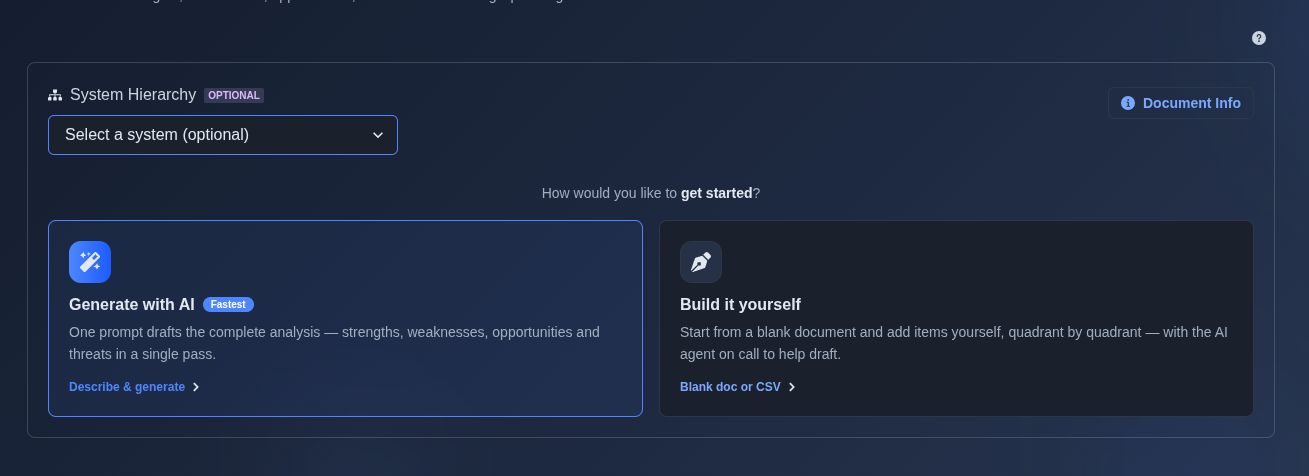
Two paths — Generate with AI drafts the complete document from one prompt, or Build it yourself starts a blank document (or a CSV import) that you author by hand, with the AI agent on call. The steps below appear once you pick the AI path.
00:31 — Or draft with the agent
On an empty hand-authored document, this banner offers a shortcut — Draft with the agent opens the AI agent pre-briefed on this document and its hierarchy context. The agent proposes content in chat first; what you approve lands as a single follow-on for you to review and merge, never a silent edit.
00:57 — Ask the agent anywhere
These Ask agent buttons sit beside sections and items throughout the document. Each one seeds the agent dock with that section's specifics, so you can delegate one slice ("add three thermal failure modes") without re-explaining the document.
01:17 — Describe what you want
One or two sentences is enough. Name the domain, your constraints, and any standards you have to meet — and attach reference documents if you want them used as context. On a document that is already loaded, this composer appears only in Follow-on Mode, because follow-ons are how you ask the AI to change existing work.
01:41 — Generate
Click Generate. Most tools complete in 30–90 seconds and you'll see live status updates while the AI is working.
01:53 — Review, search, export
Your structured output appears below this bar. Search it, export to PDF, CSV or JSON, edit inline, refine with a follow-on, or send it to a teammate for review. And once a document is baselined, direct edits are locked — you take a working copy, change that, review the diff, and merge. The same change-controlled loop applies to you and to the agent alike.
02:26 — docs.creopus.ai
Full documentation, including every tool, is at docs.creopus.ai
Concept-validation and go/no-go framing in four quadrants.
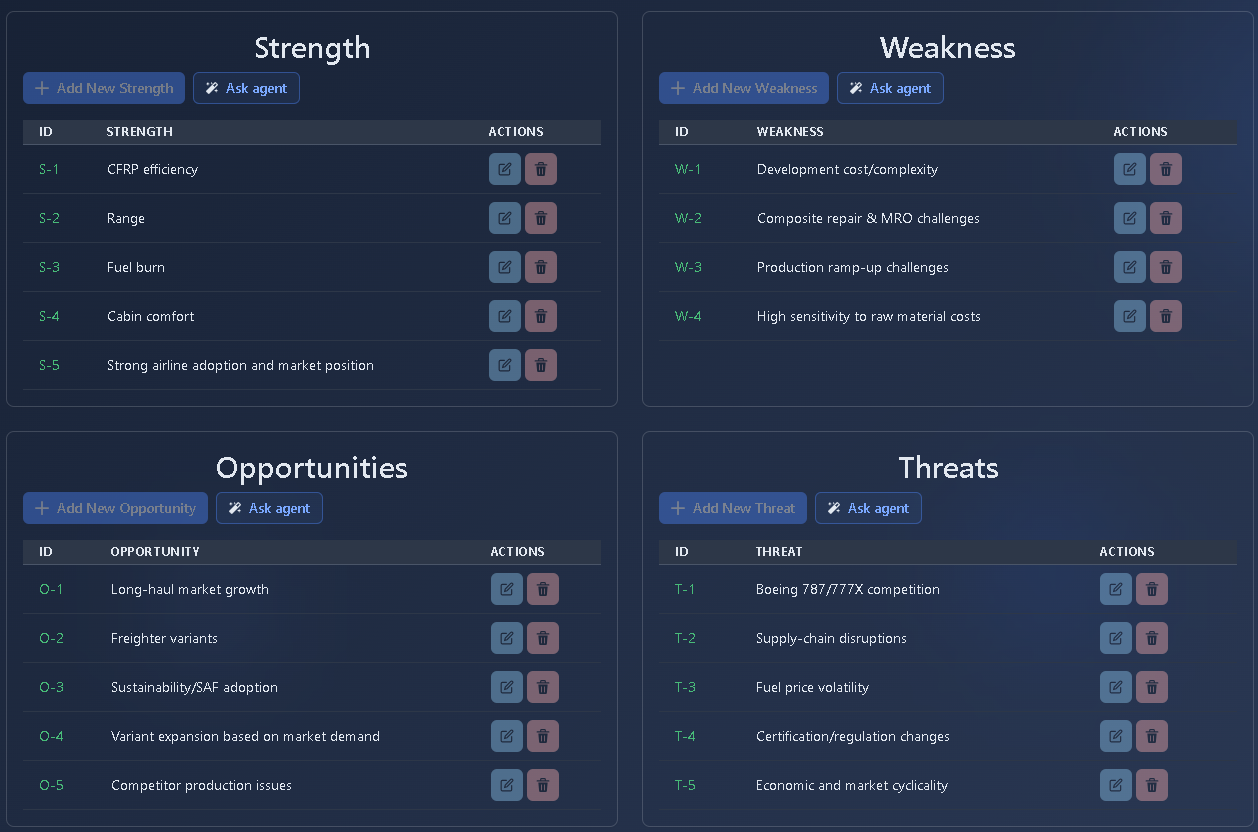
What it's for
SWOT lays out Strengths, Weaknesses, Opportunities and Threats as four quadrant tables with auto-prefixed IDs (S- / W- / O- / T-). A Research Context panel surfaces the AI’s cited market sources, and a Derivation-Quality panel scores how well the analysis covers its source artifact.
When to use it
SWOT analysis for concept validation, strategic planning, and go/no-go decisions before moving forward with a project or architecture.
How it works
-
Select Generate with AI or Build it yourself. → The SWOT analysis displays four quadrants — Strengths, Weaknesses, Opportunities, and Threats. Each quadrant contains items with unique IDs and descriptions, such as S-001 for Strength, W-001 for Weakness, O-001 for Opportunity, and T-001 for Threat. When “Generate with AI” is selected, the user enters a prompt, and the AI analyzes the prompt along with the selected system and node to generate the SWOT items. When “Build it yourself” is selected, the user can manually add the items.
▶ Initial State▼ Initial State
-
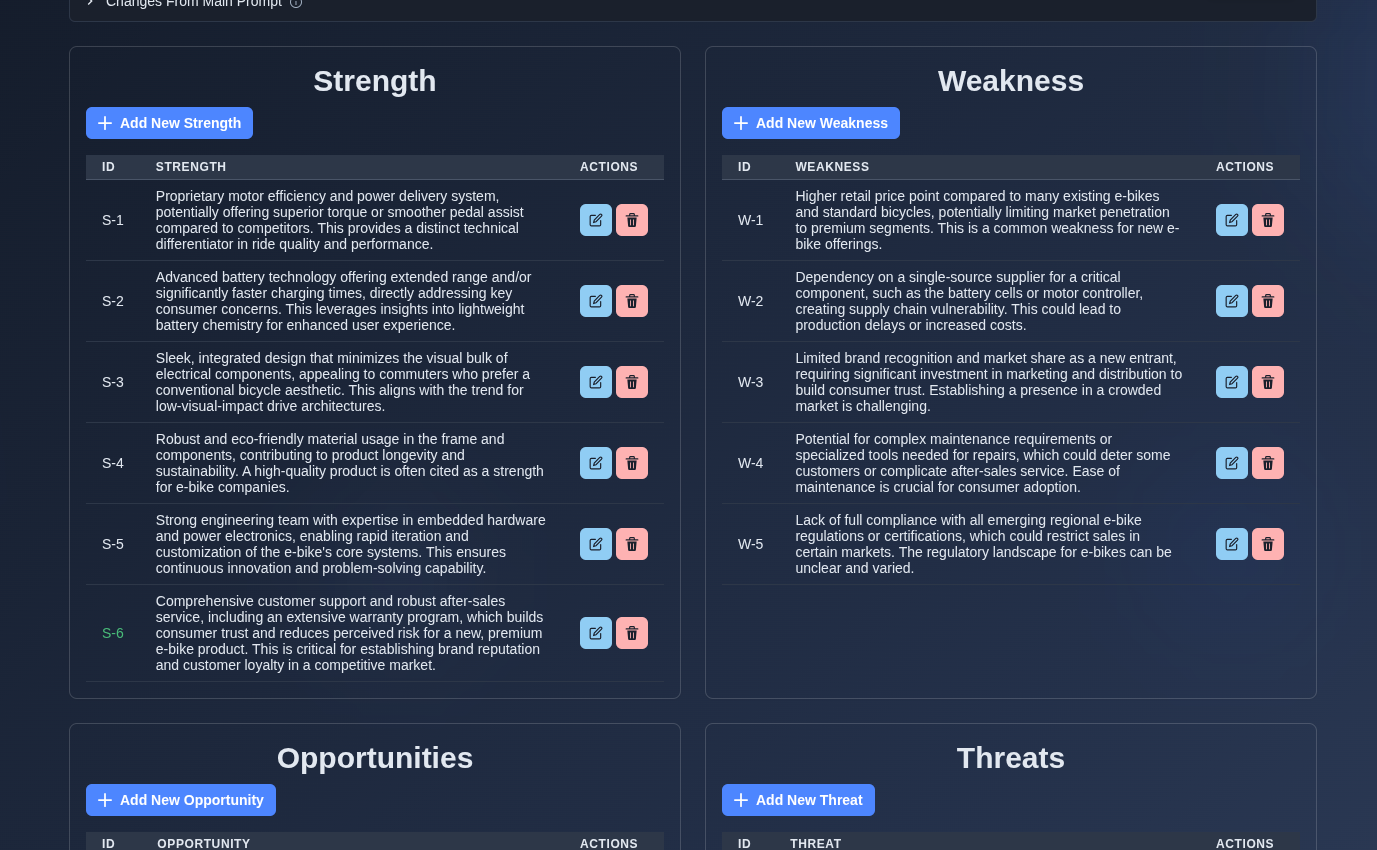
Add, edit, or delete items in each quadrant using a follow-on prompt. → Each quadrant provides an Add button and a per-quadrant Ask-agent option. Items can be added, edited, or deleted through the follow-on prompt. For AI-generated documents, Follow-on mode must be enabled to perform any add, edit, or delete action. When editing an item inline, a speech-to-text option is also available.
▶ Add, edit, or delete items▼ Add, edit, or delete items
-
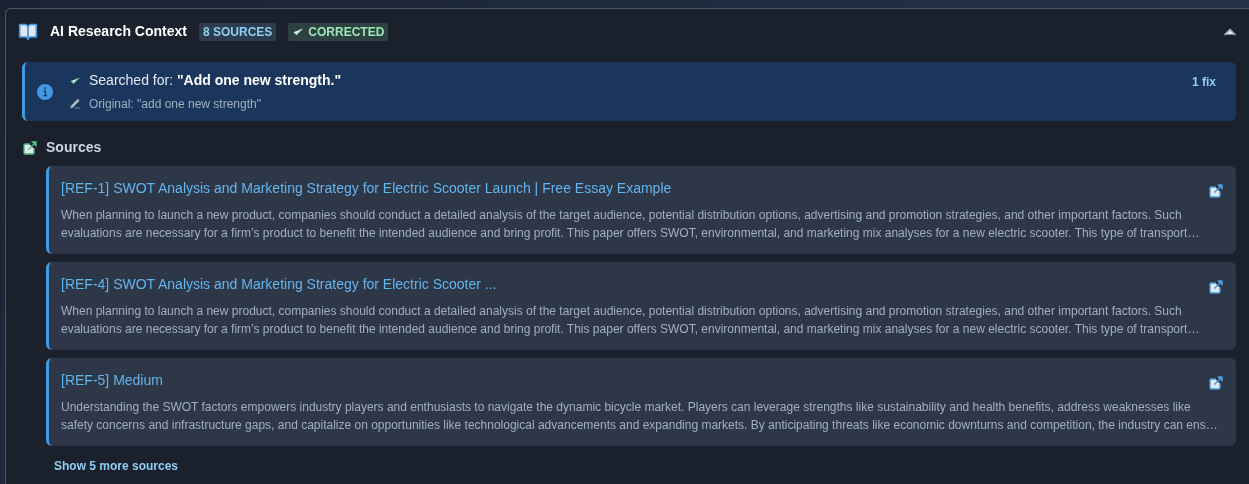
Open the Research Context panel. → The panel displays the sources and search queries used by the AI for the SWOT analysis. When a follow-on prompt is submitted, the new research context, sources, and query are added to the existing panel without refreshing or replacing the previous context. Any corrections or fixes from the follow-on are also shown in the Research Context.
▶ Research Context▼ Research Context
-
Open the AI Research Context panel and select a source. → The panel displays the research sources and search queries used by the AI. Each source shows its reference ID, title, and relevant content excerpt. Select the source link/icon to open the complete source details from the web.
▶ Open AI Research Context▼ Open AI Research Context
-
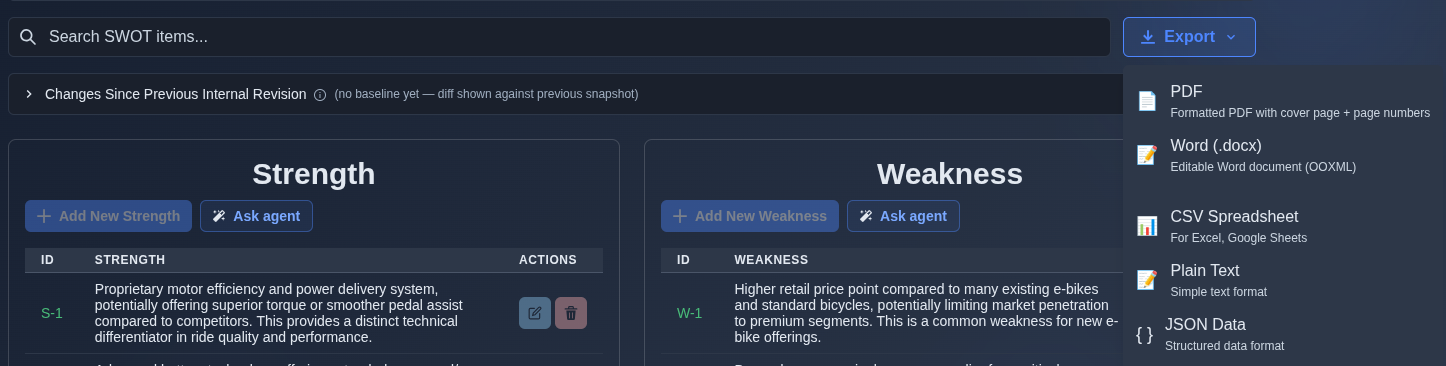
Select an export format from the Export menu. → The SWOT analysis is exported in the selected format. Select PDF to generate a formatted PDF with a cover page and page numbers, Word (.docx) for an editable document, CSV Spreadsheet for spreadsheet use, Plain Text for a simple text file, or JSON Data for structured data.
▶ Export▼ Export
Mechanics
- Four fixed SWOT quadrants with auto-IDed items
- AI-generated or manually built SWOT analysis
- Add, edit, and delete items with follow-on prompts and voice input
- AI Research Context with sources and search queries
- “View All” combined view
- Export as PDF, Word, CSV, TXT, or JSON