PFMEA
Process failure modes scored with live RPN and Action-Priority across your manufacturing flow.
What it's for
A master-detail PFMEA based on the AIAG-VDA approach: a process tree (Process Item → Process Step → Failure Mode → Cause) on the left and a detail panel on the right. RPN = Severity × Occurrence × Detection is calculated live, while the Action Priority (AP) badge provides a consequence-first risk decision, and the Expected (post-action) RPN shows the anticipated risk reduction after process controls and actions are implemented. Unlike DFMEA, which analyzes design intent, PFMEA focuses on the manufacturing and assembly process — asking how a process step can fail, what process controls exist, and what actions reduce process risk.
When to use it
Use PFMEA during manufacturing process design and production readiness reviews to identify and prioritize process failure risks before production begins.
How it works
-
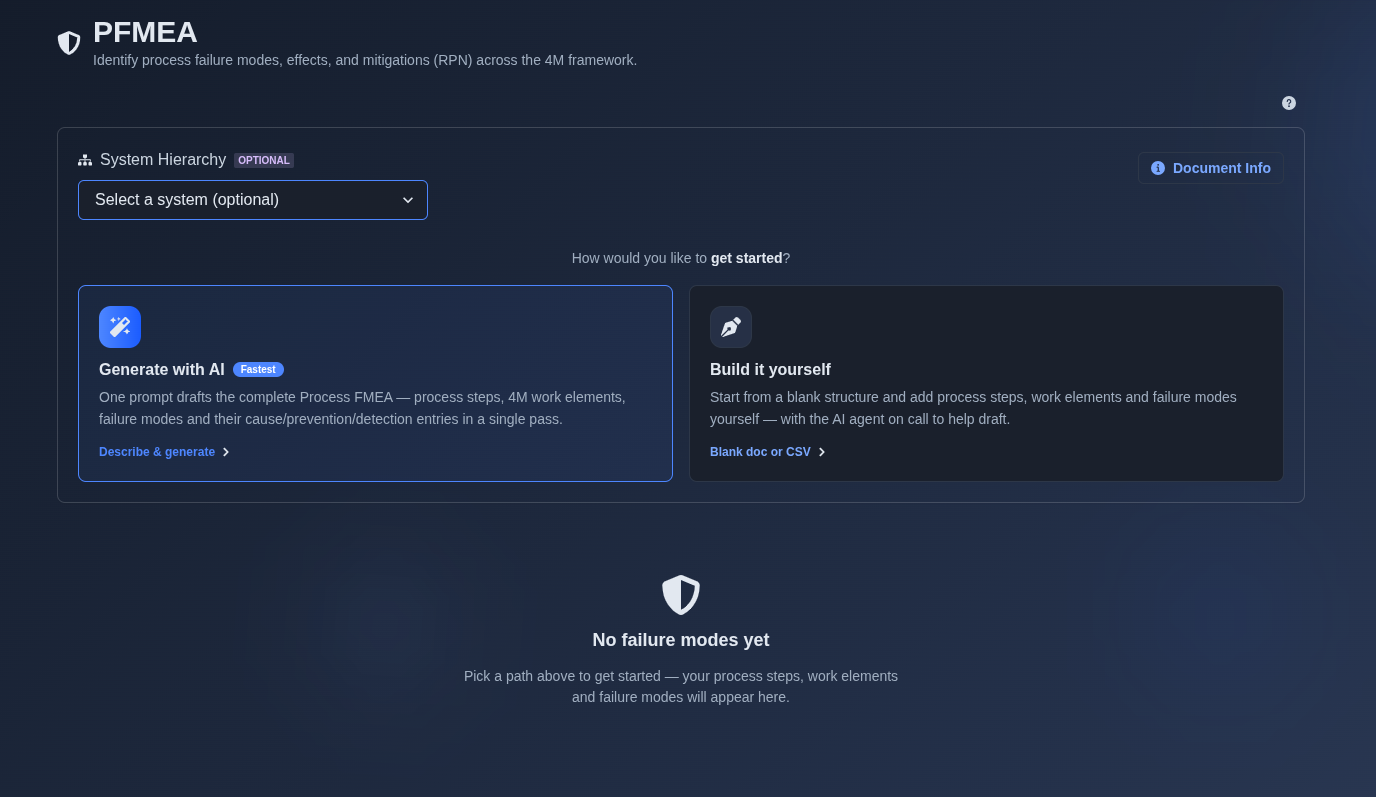
Generate with AI or build it yourself. → Select "Generate with AI" or "Build it yourself." If "Generate with AI" is selected, enter a prompt describing the manufacturing process or process flow for which you want to perform a Process Failure Mode and Effects Analysis (PFMEA). The AI analyzes the provided information and generates an initial PFMEA, identifying key process steps, potential failure modes, effects, causes, existing process controls, and preliminary Severity, Occurrence, and Detection ratings. If "Build it yourself" is selected, choose either "Create a blank document" to build the PFMEA manually from an empty document or "Import from CSV" to upload PFMEA data and create the PFMEA from the imported data.
▶ Initial State▼ Initial State
-
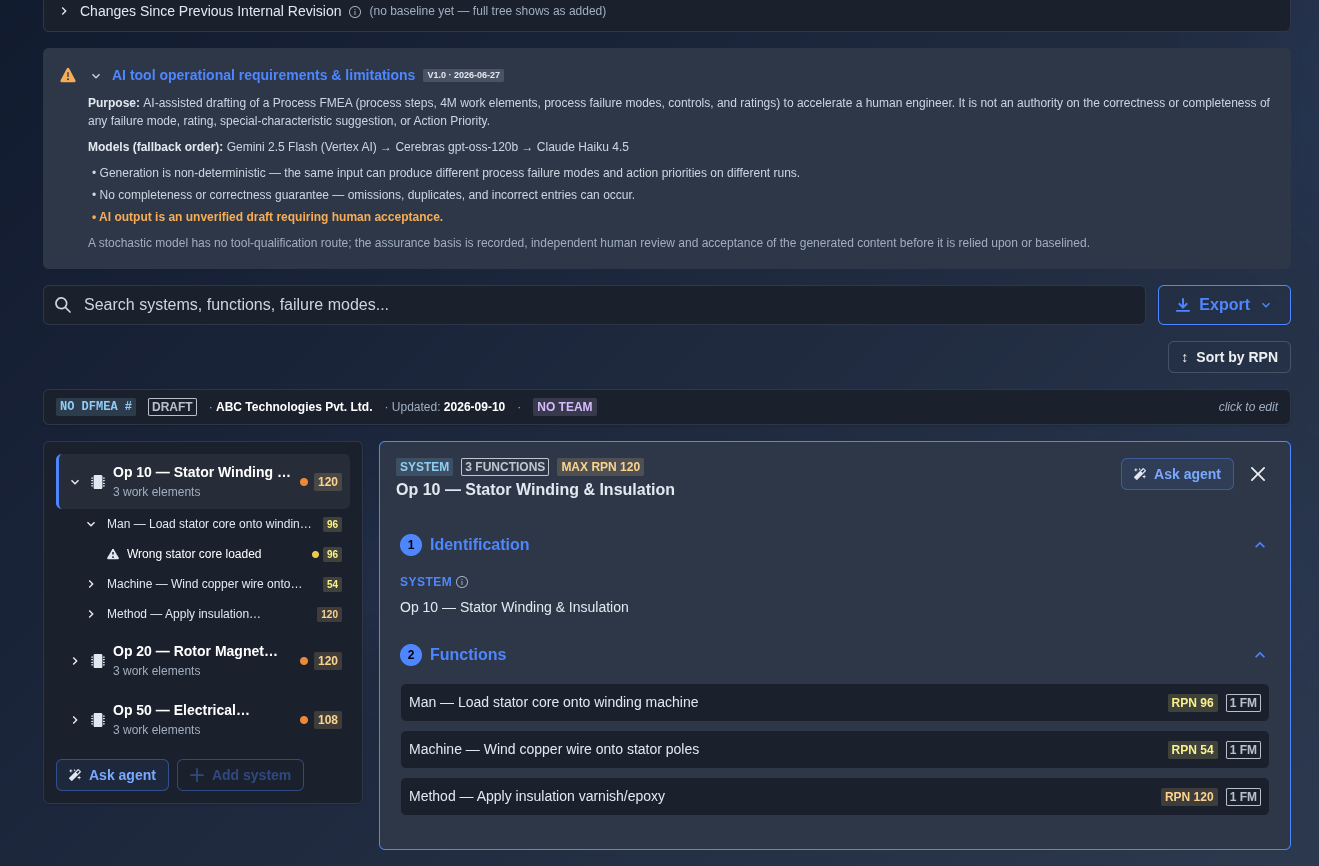
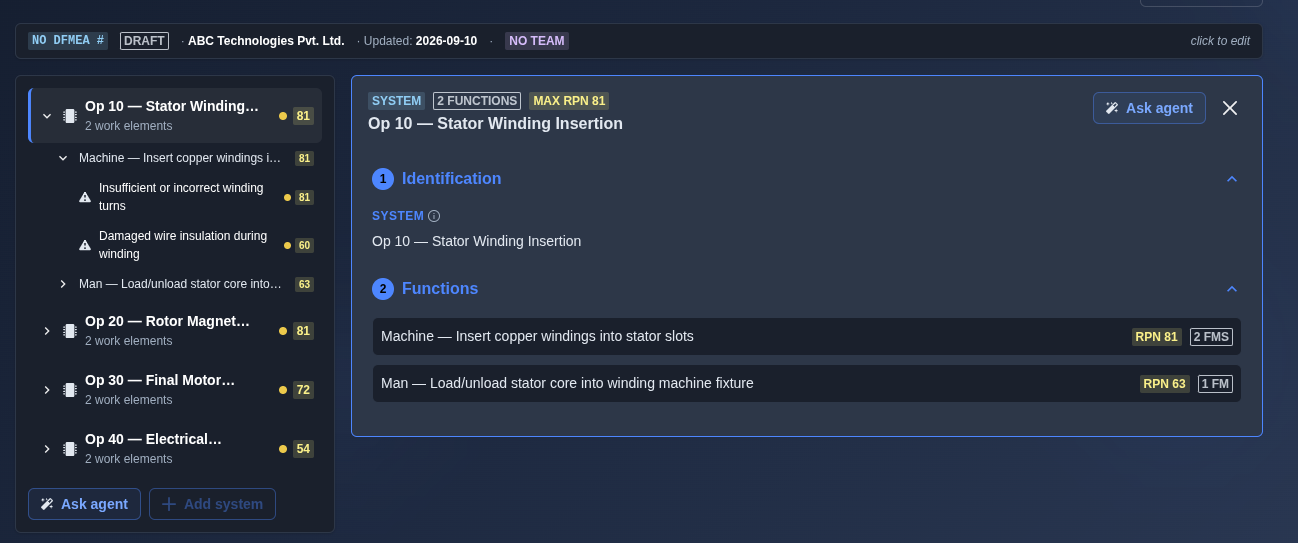
AI-generated PFMEA. → Review the generated PFMEA entries organized by Process Step and Function. Each failure mode entry includes the Failure Mode, Risk ID, Cause, Effect, Severity, Occurrence, Detection, Action Priority, RPN, Current Process Prevention Controls, and Current Process Detection Controls. Review the risk ratings and control information to identify and prioritize the process risks.
▶ Review the AI-generated PFMEA▼ Review the AI-generated PFMEA
-
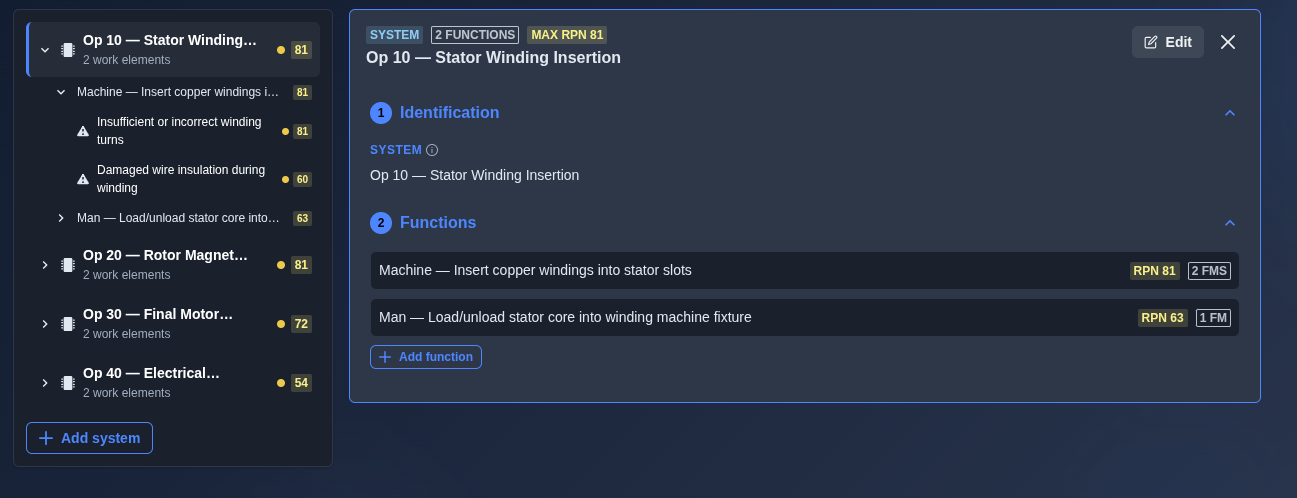
Click Add, Edit, or Delete. → In AI-generated PFMEA, editing is available only in the follow-on mode, while Add, Edit, and Delete are disabled in the main prompt view. In manually created PFMEA, Add, Edit, and Delete actions are available directly from the main directory, with separate Add buttons available for creating Process Item, Process Step, and Failure Mode entries.
▶ Add, Edit, or Delete▼ Add, Edit, or Delete
-
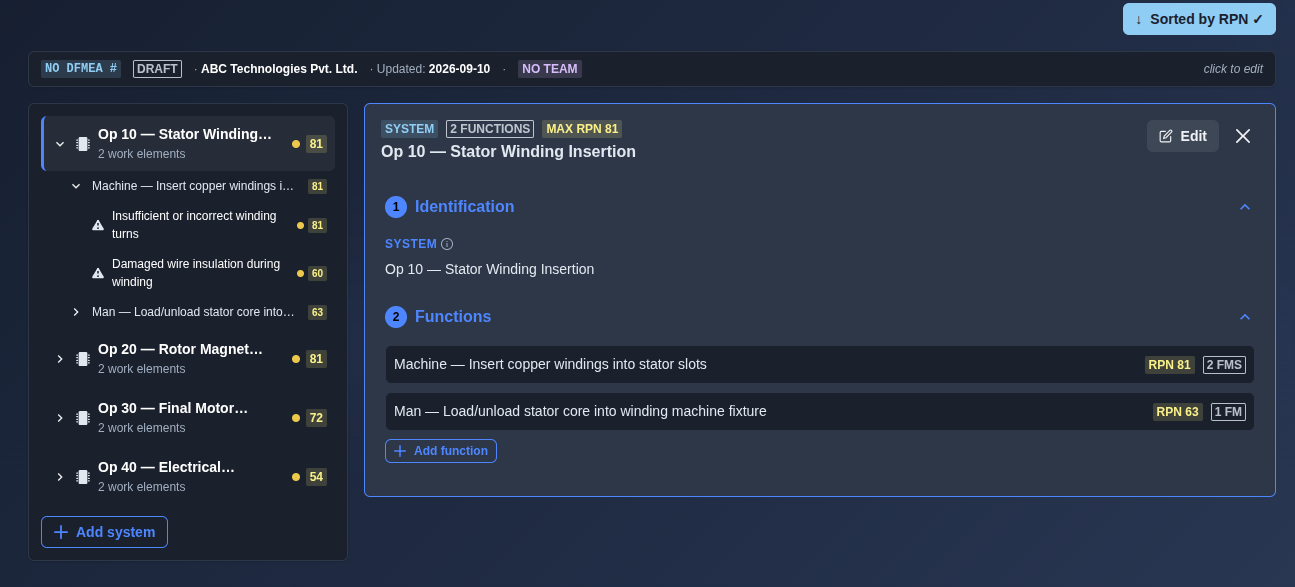
Sort by RPN. → Clicking the "Sort by RPN" button reorders the PFMEA entries, typically displaying the failure modes with the highest Risk Priority Number (RPN) at the top. This helps to quickly identify and prioritize the most critical process risks.
▶ Sort by RPN▼ Sort by RPN
-
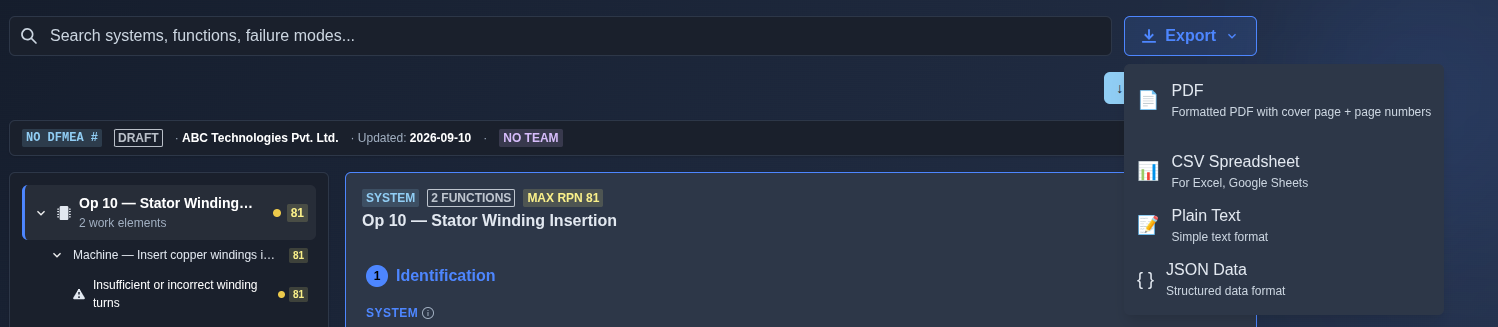
Export the PFMEA. → Click "Export" and choose the required format: "PDF", "CSV Spreadsheet", "Plain Text", or "JSON Data".
▶ Export▼ Export
Mechanics
- Master-detail PFMEA hierarchy (Process Item → Process Step → Failure Mode → Cause)
- RPN = S×O×D live · risk thresholds red≥200 / orange≥100 / yellow≥50 / green<50
- Action Priority (AP) badge · Expected (post-action) RPN + delta
- Process-safety-critical flag · action status · action effectiveness
- Add · Edit · Delete · follow-on editing for AI-generated PFMEA
- Sort by RPN to prioritize highest-risk process failure modes
- AI Research Context for reviewing sources and research information used by AI
- Revision and review support
- Export as PDF · CSV Spreadsheet · Plain Text · JSON Data